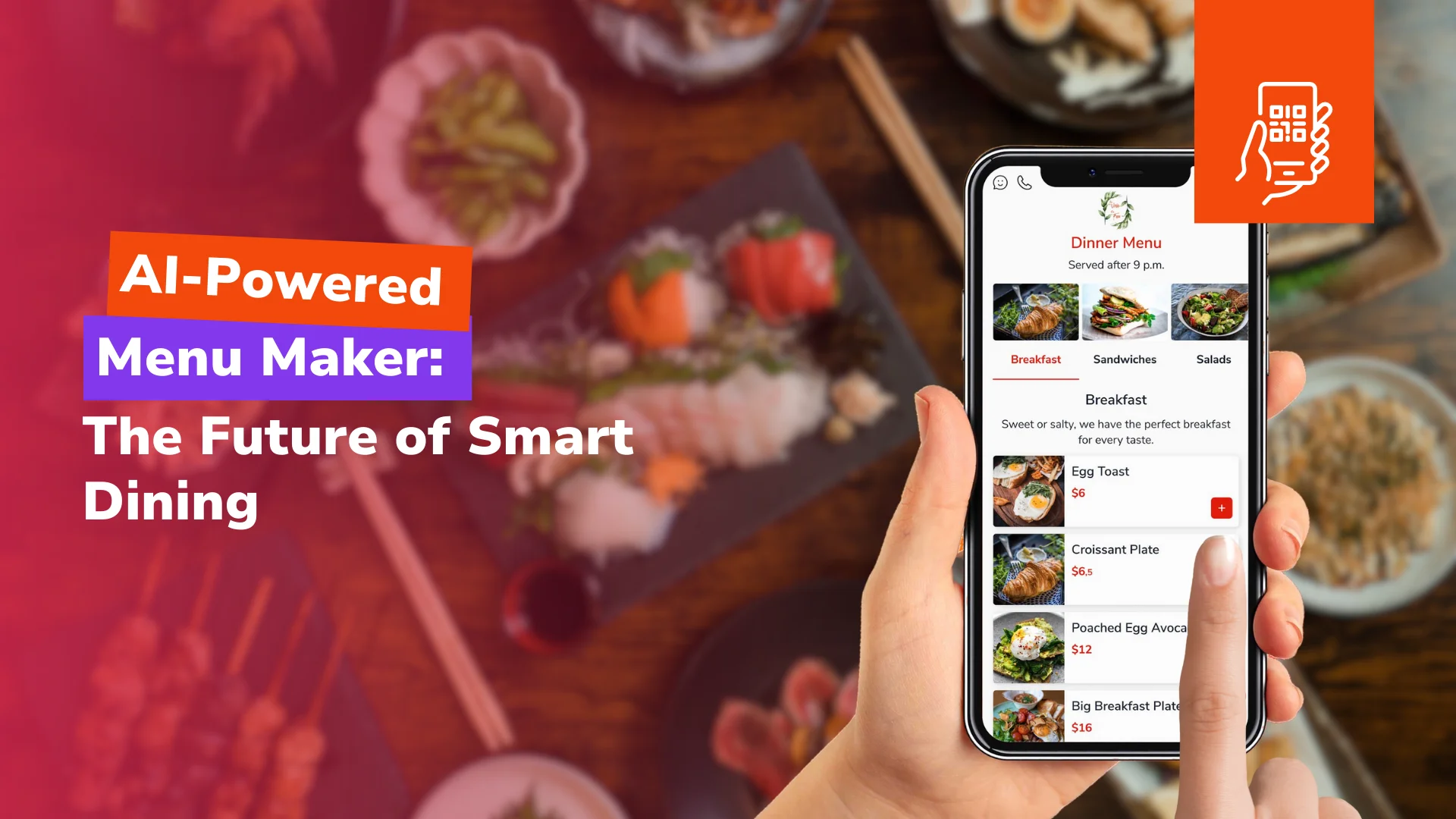
You have a menu that works on paper, maybe as a PDF from the designer or a spreadsheet the manager keeps prices in, and you want it on the tables behind a QR code without retyping every dish. That's the job an AI menu maker does. You upload the file, and it gives you a draft with sections, dishes and prices that you can edit, preview on a phone and publish. It saves you the typing. It doesn't save you the checking. Someone who knows the kitchen still has to read every price, size, allergen label and serving time, because whatever you build on the menu later, from translations to a website, inherits the draft's mistakes.
What the AI reads from your menu, and what it can't know
The AI only has what's printed or typed in the file you give it. From that it tries to pull the section headings, the dish names and the prices, and lays them out as a menu you correct instead of retype.
A lot of what a digital menu shows the guest isn't on the printed page, or isn't written in a way software reads cleanly. A burger in two sizes might be one line with two prices and a slash between them. Extra cheese might live in a footnote. The time breakfast stops is usually something the team knows, not something the menu says.
A digital menu gives each of those its own field: a price per size, add-ons with their own prices, allergen and nutrition labels, the hours an item is available. After the import, treat all of those fields as yours to check, whatever the AI managed to read.
We haven't measured how accurately an AI import reads a menu, and it will vary with the file. Plan for a draft you read in full, not a finished menu.
Photo, PDF or spreadsheet: which file to start from
If your dishes and prices are already in a spreadsheet, start there. The columns already keep the name apart from the price, so the AI has less to guess than on a photographed page. We haven't tested this side by side. It's the same reason anyone retyping a menu would rather work from a spreadsheet.
Next best is a PDF from whoever designed your printed menu, since the text in it is usually sharp. A photo can work too. Shoot each page flat and straight, in even light, one page per photo, and zoom in before you upload. If you can't read a price on the photo, plan on typing it in yourself.
Upload the menu you're serving today. Last season's file brings last season's dishes and prices into the draft, and you'll spend the afternoon fixing it line by line.
The check before guests see the menu
Leave the menu in draft until one person who knows both the kitchen and the till has read it from top to bottom. When a guest spots a wrong price, it becomes a discussion at the table about which price counts. Do the read on a quiet afternoon, not between services.
1. Read every price, including each size and portion. Give a second look to any line that had more than one price on the printed menu.
2. Put the sections in the order you want guests to scroll them on a phone. The draft follows your file, and a printed layout doesn't always work on a narrow screen.
3. Hide the dishes you aren't serving right now rather than deleting them, so they're ready when they come back.
4. Check allergen and diet labels against the current recipe, not the old menu.
5. Set serving hours for anything that's only on part of the day.
6. Open the menu on a phone and scroll through all of it like a guest would.
Then publish, and print the QR codes for the tables.
Descriptions, photos and translations: AI drafts, you sign off
Once the dishes and prices are right, AI can help with the parts that take longest to write by hand. Each of them still needs a person to check it, for a different reason each time.
An AI-written description reads well and knows nothing about your kitchen. Read each one for claims you can't stand behind. If it says house-made and the bread comes from a supplier, change the line before a guest asks the server about it.
An AI-enhanced or AI-created dish photo has one test: does it look like the plate that leaves the pass? A guest who orders from the photo compares it with what arrives. If the photo has more garnish than the kitchen sends, you've set that comparison up to fail.
Machine translation gives you a first pass in another language. Dish names are a common place for it to slip, because a house name or a regional name gets translated word for word into something that means nothing to the guest. Have someone fluent in the language read the translated menu before it goes live, starting with the allergen and ingredient lines. Keep in mind that each language you add is one more copy of every description to update when a recipe changes.
Building and checking the menu in FineDine's Menu Manager
In FineDine's Menu Manager, the Menu Builder option takes a photo, PDF, Excel or CSV file of your menu and drafts the menu from it. If you don't want to upload anything, you can start from scratch, or open a sample menu to get a feel for the editor.
The editor lists sections and items on the left and shows a live mobile preview on the right, so you see the guest's view as you work. You drag items to reorder them, turn an item's visibility off to hide it, and edit prices right in the list. The menu stays in Draft until you switch it to Publish. If a guest scans the code while the menu is still in draft, they see a note that the menu is being prepared. The QR code and a share link are in the same editor.
Each item has five tabs, and they cover the same ground as the pre-publish check. General holds the name, the description and the image or video. Price Options holds sizes and portions, each with its own price. Modifier Options holds the extras. Nutrition Info holds the nutrition label and nutritional content. Availability sets the days and times the item shows. On the guest's phone, the item card shows the price options along with allergen and diet icons.
Photos, descriptions and languages in FineDine
The description field has an Enhance with AI button for a first draft. For photos, AI Media Studio either enhances a photo you already have or creates a new one. You can set the camera angle, use dish presets like Add Steam, Add Garnish and More Lighting, and flip to a before-and-after view to compare the result with the original.
AI work uses your account's credits, and the cost depends on the type of image. Enhancing an existing photo takes more credits than generating a plain image, and marketing images take the most. The first five AI photos are free. How many credits you get depends on the plan, and the pricing page has the current figures.
Translations are done in the Translation Center. Each language sits next to the original with a completion percentage, AI auto-translate fills in a first pass, and an Untranslated filter shows what's still missing. Guests pick their language from a selector on the menu. The number of menu languages you can run depends on your plan, and not every plan includes more than one, so check the pricing page before you plan a multilingual menu.
Finish the menu before you generate a website from it
FineDine's AI Website Builder writes a restaurant site from a short prompt, and in our test it filled the site's menu content from the menu data already on the account. We generated a site for a test bakery from a bakery prompt, and the Popular Items section showed T-Bone Steak and Filet Mignon, because the account still had the sample steakhouse menu on it. The venue's location details were empty, so the site showed a placeholder location.
Other parts of the test site came out better. From a prompt written in English, the builder produced a Turkish page title that named the city and the bakery's products. Both problems come down to order. Build and check the real menu, fill in your venue information, delete the sample menu if you opened one, and only then generate the site.
After the menu goes live: what FineDine IQ shows
FineDine IQ, the AI Reports tab, updates hourly. It shows Menu Views, Section Views and Item Views next to Orders and Revenue, over 7, 14, 28 or 90 days or a custom range, compared with the previous period. If an item gets opened often and ordered rarely, its photo, description or price is a good place to start looking.
IQ also flags anomalies in revenue, orders and sessions, and its Actions list suggests fixes you can apply with a tap, like items missing photos or bestsellers that are hidden. Keep in mind that views tell you what guests opened, not what they ate. If guests read the menu on their phones but order through a server on a separate POS, expect the order numbers for those tables to be in the POS rather than in IQ.
| Part of the menu | Where it comes from | What to check |
|---|---|---|
| Sections and dish names | Read from your file | Spelling of house names, section order on a phone screen |
| Prices | Read from your file | Every line, especially items with more than one size or portion |
| Descriptions | Your file, or an AI-written draft | No claim the kitchen doesn't deliver every day |
| Photos | Your upload, or AI-enhanced or AI-created | Looks like the plate that actually goes out |
| Add-ons and extras | Set per item in the editor | Prices of the extras |
| Allergen and nutrition labels | Set per item in the editor | Matches the current recipe |
| Serving hours | Set per item in the editor | Breakfast, lunch and late-night cutoffs |
| Other languages | AI first pass | Read by a fluent speaker, allergen lines first |
Frequently Asked Questions
- Can I build the menu by hand instead of uploading a file?
- Yes. Menu Manager lets you start from scratch, or open a sample menu to learn the editor first. If you use the sample, delete it before you generate a website, because the AI Website Builder pulls menu items from whatever is on the account.
- Do guests need to download an app to see the menu?
- No. The QR code opens the menu as a web page in the phone's browser, with a language selector if you've added other languages.
- If I change a price after publishing, do I have to reprint the QR codes?
- You shouldn't need to. In our test the code led to a link for the venue's menu, not to a saved copy of it, so a price you change in the editor shows up on the same page the table codes already open.
- How much do AI dish photos cost?
- They use credits rather than a separate fee. The first five AI photos are free. After that the cost depends on the type: enhancing an existing photo takes more credits than generating a plain image, and marketing images take the most. The pricing page lists how many credits each plan includes.
- Is there a free trial, and is it the full product?
- There's a 14-day trial, and it isn't the full product. Some features are locked during the trial, including in-app promotions and a custom domain, and the number of items per menu is capped, so a long menu may not fit. The pricing page lists what each plan includes.