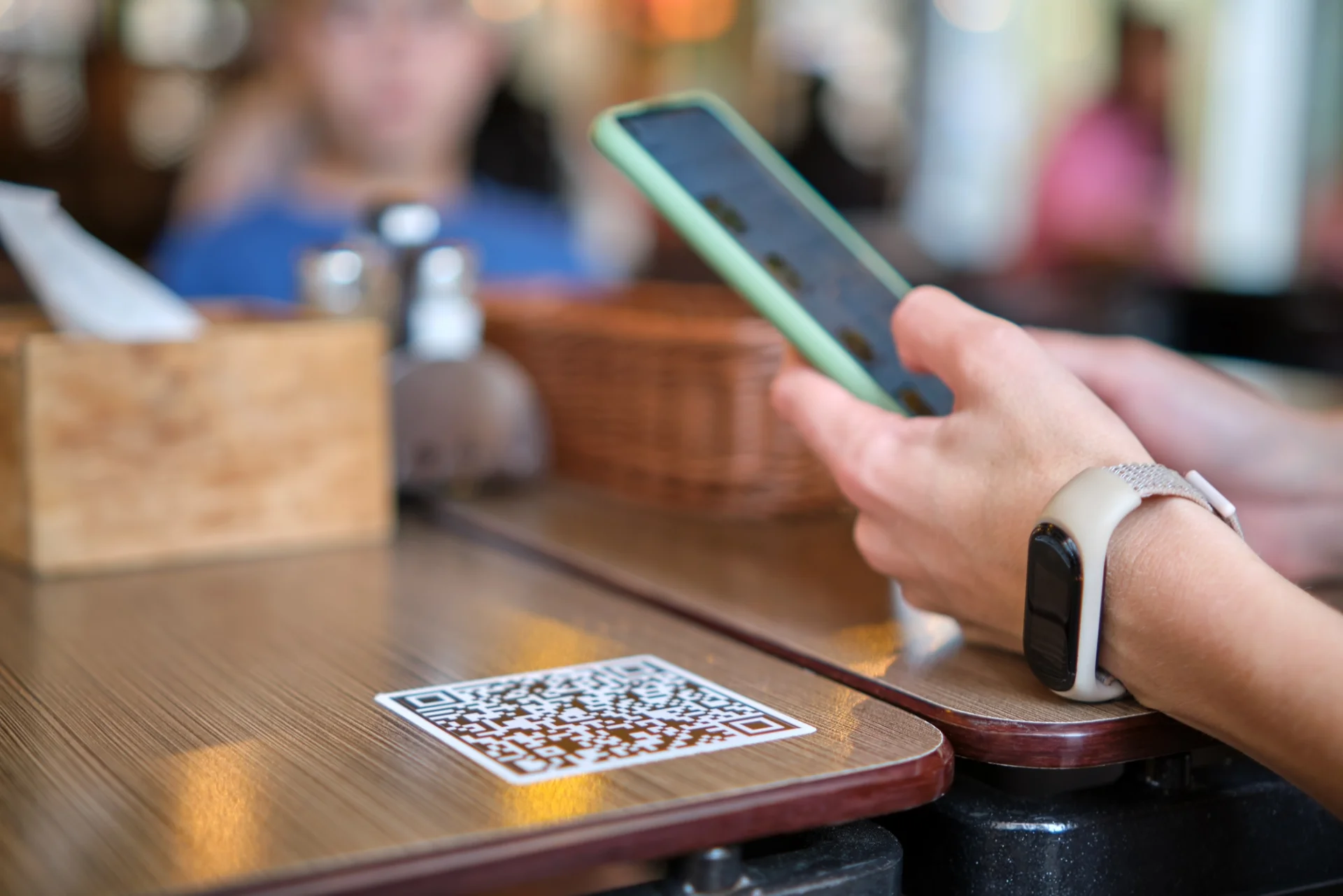

On a busy night, a table that's ready to order usually waits for a free server, not for the kitchen. QR code table ordering moves that step to the guest. Each table gets its own printed code. The guest scans it with their phone camera, your menu opens already linked to that table, and the order arrives on your order screen with the table number on it. Depending on how you set it up, the guest can pay from the same page too.
Turning it on involves a few decisions you can't hand to a setup wizard: a menu guests can order from without asking anyone, a table list that matches your floor, and a way to pay. This guide covers those, the setup itself, where QR ordering doesn't fit, and what the FBI's warning about QR codes means for the codes on your tables.
First, decide whether your room should take orders by QR
QR ordering takes away one trip: walking over to take the order. Your team still runs food, clears plates, resets tables and deals with the guest whose dish came out wrong. So plan your staffing around that work. Don't plan it around the idea that ordering was the job.
It fits best where guests already know what they want and speed matters to them: cafes, bars, casual dining, a terrace where servers cover a lot of ground. It fits worst where taking the order is part of what the guest pays for. On a tasting menu, or anywhere the server's recommendation sells the wine and the specials, a phone screen replaces the conversation that sets you apart.
Two practical limits come before any software choice. The menu loads over the internet, so walk to your furthest table, whether that's the back of the terrace or the basement room, and check the signal there. And some guests won't have a phone, or will have a dead battery. Someone on the floor still needs to be able to take an order the old way.
You don't have to pick all or nothing. FineDine's QR settings let a code show the menu without taking orders, and a tablet mode lets servers take the order on a handheld device. The table below sets the options side by side.
Get the menu ready for guests who can't ask a server
A server fills in gaps as they take an order: how the steak should be cooked, which side comes with the main, whether the sauce contains nuts. On a QR menu nobody asks, so the menu has to carry those questions itself.
In practice that means modifiers for every choice a server would normally ask about (doneness, sauce on the side, an extra shot), price options for sizes and portions, and allergen and diet information on each item. The guest menu shows allergen and diet icons on the item cards, but only if you've filled them in. Set time-based availability on dishes that are only served at certain hours, so the lunch set isn't still showing at dinner.
The gap most venues miss is running out of something mid-service. When a server takes orders, they learn what's gone and stop offering it. On a QR menu, the dish stays orderable until someone hides it. Each item in the menu editor has a visibility toggle. Decide before the first service who is responsible for switching it off when the kitchen runs out, and make that part of the pass.
Setting up QR table ordering in FineDine
The setup follows the order in which a guest's order travels: menu, table, code, payment, your screen.
1. **Publish the menu.** Build it in Menu Manager. Menu Builder can read a photo, PDF or Excel file of your current menu. Check every price and modifier it brings in, look at the live phone preview, then switch the menu from Draft to Publish. While a menu is still in draft, a guest who scans sees a "menu is being prepared" page.
2. **Add your tables.** Under Settings, Operations, Tables, create a table for each one on your floor and group them by area (inside, terrace, upstairs). The area appears with the order, so runners know where to go. The number of tables you can add depends on your plan; the current limits are on the pricing page.
3. **Choose the QR mode.** Under Settings, QR Codes, choose Ordering, then Dine-In. You can give each table its own code or use one code for all tables. A code per table ties each order to the table it came from. A single code means less printing, so before choosing it, check how that mode identifies the table.
4. **Turn on the Dine-In QR channel and set payment.** In Orders, Ordering Settings, turn on Dine-In QR. Then choose how guests pay: online through the menu (card, Apple Pay, Google Pay) or at the end with card or cash. Tips, a minimum order amount and age verification for alcohol are set on the same screen. Fast Checkout runs on Stripe or Myfatoorah and supports splitting the bill.
5. **Add your cover or service charge** under Extra Charges if you apply one, so the total the guest sees matches what you charge.
6. **Choose the requests guests can send** from the table under Service Options, for example asking for the bill or reporting a wrong order.
7. **Download and print the table codes** from the Tables screen and place them.
8. **Test before the first service.** Scan every table's code with a staff phone, place one test order, confirm it shows up under Orders with the right table, then cancel it.
Decide where orders should end up before launch day. They arrive on FineDine's Orders screen. If you want them in your POS or printed as a ticket, the Marketplace lists the POS integrations (Foodics, Clover, Revel, Simpra and others) and a receipt printer integration. Check that yours is on the list. If you don't use an integration, one person needs to be watching the Orders screen during service.
The FBI warning about QR codes, and what it means for your tables
On January 18, 2022, the FBI's Internet Crime Complaint Center published a public service announcement titled "Cybercriminals Tampering with QR Codes to Steal Victim Funds". It describes criminals replacing real QR codes with their own, sometimes by sticking a new code over the original, to send people to a fake site that asks for login or payment details. Its advice to consumers: check the web address after scanning, be careful about entering payment details on a site opened from a QR code, look for signs that a physical code has been tampered with, and don't download an app from a QR code.
The notice was written for US consumers. The method it describes needs only a printer and a sticker, though, and a code sitting on a restaurant table is exactly the kind of physical code it talks about. If your guests pay through the menu, you are the one they'll blame if a fake code takes their card details.
Your staff should know what a real scan looks like, because guests will ask. A FineDine table code opens an fndn.mn short link, which leads to your venue's welcome page in FineDine's guest menu, showing your venue's name. The menu runs in the phone's browser, so a real code never asks the guest to install anything. A code that asks for an app, or opens a payment page without your name on it, isn't yours.
The check itself is quick. Scanning every code at the start of each day is the same test as step 8 above, done without the test order. Any code that looks re-stuck, raised at the edges or covered by a second layer comes off the table, and you print a replacement from the Tables screen.
After the first weeks: reading what changed
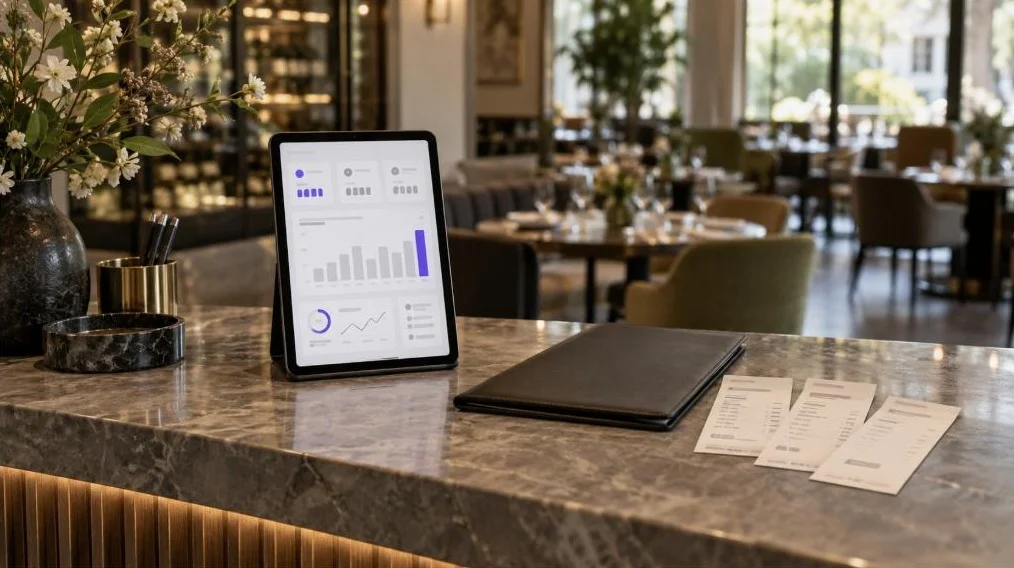
Once QR ordering is running, the question shifts from whether it works to what it changed. FineDine IQ, the AI Reports tab in the panel, updates hourly and compares date ranges (7, 14, 28 or 90 days, or a custom range). Put the weeks since launch next to the period before and look at Orders and Avg Ticket. During service, the Real-time tab shows what's coming in.
Two cautions when you read those numbers. A comparison across a holiday, a menu change or a new season mixes those effects in with QR ordering. And Menu Views and Item Views show what guests open, which is useful for spotting a dish that many guests look at but that rarely shows up in orders. Whether the photo, the description or the price is holding that dish back is still your call.
| Option | What the guest does | Where it fits |
|---|---|---|
| QR code, menu only (Display) | Scans to browse the menu, orders with a server | Server-led dining, tasting menus, rooms where the recommendation matters |
| QR ordering, one code per table | Scans, orders and can pay; the order carries the table | Cafes, bars, casual dining, large terraces |
| QR ordering, one code for all tables | Scans the same code at every table | Venues that want less printing; check how the table is identified first |
| Tablet, Full Service mode | Orders through a server holding a tablet | Venues that want digital orders without self-ordering |
Frequently Asked Questions
- Where can I find QR codes for my tables?
- They come from your ordering system, not a free QR generator. A generic code only opens a link and has no idea which table it sits on. In FineDine, you download the codes for each table from the Tables screen and print them yourself.
- Can guests pay at the table through the QR code?
- Yes, if you turn on online payment for the Dine-In QR channel. You can also leave payment to the end of the meal. For how QR payments work, see [What is QR Payment and Why is It Essential for Your Restaurant?](/en/blog/what-is-qr-payment-and-why-is-it-essential-for-your-restaurant/)
- What happens if a table's code gets damaged or goes missing?
- Download that table's code again from the Tables screen and print a new one. Scan it once before the table is seated.
- Can guests see the menu in their own language?
- The guest menu has a language selector that shows the languages you've translated the menu into. How many languages you can add depends on your plan, so check the [pricing page](/en/pricing/).
- Can I switch back to a menu-only QR code later?
- Yes. The QR Codes settings have a Display mode that shows the menu without taking orders. If you switch, remove any table cards that tell guests to order by phone.