Making the code takes a minute, and it's the least important minute of the job. A QR code menu is a printed code that opens your menu in the guest's phone browser, and everything that decides whether it works happens before you print it. The first choice is whether the code only shows the menu or also takes orders and payment. The second is whether you print one code per table or one for the whole room. Both decide what you can do with the code afterward, and both are hard to reverse once the stickers are on the tables. Here is what each one changes, what guests get after they scan, and where QR menus still fall down.
The Code Is Just a Link
The code itself carries nothing but a web address. Whatever sits at the other end is the menu your guests actually get, and that is where a workable QR menu and an irritating one split.
Two routes are common. Upload a PDF or a photo of the menu somewhere and point the code at that file. Or point the code at a menu page you edit. The file route holds up until the first price change. On a phone a PDF opens as a document to pinch and drag, and if the file address changes when you upload the new version, every printed code goes dead at once. A menu page keeps the same address while the contents change underneath it, so the sticker on the table survives a Tuesday price update.
One thing to check before you print anything. A menu left in draft opens on a holding screen that says the menu is being prepared. To the first guest who tries it, that looks like a broken code.
Display Only, or Ordering Too
A QR code can behave in two ways, and you pick which one before you print. In display mode it opens the menu and stops there: the guest reads, a server takes the order. Turn ordering on and a cart comes with it, so the guest sends the order themselves and, with payment connected, closes the bill from the same screen.
Display asks less of you, and it's a fair choice. It suits a wine list that changes weekly, a room where the service model is the product, or a first month where you want to see whether guests scan at all before you rebuild the floor around it.
Ordering changes the floor, not just the menu. Orders land on a screen that someone has to be watching through service, which means assigning a person to it. What you get back is time. The stretch between a guest sitting down and the order reaching the kitchen no longer waits for a server to walk over, and those minutes after guests sit down are the ones a QR code can genuinely shorten.
One Code per Table, or One for the Room
This is the hardest choice to undo, because it's the one that gets printed.
A code tied to a specific table can carry that table with the order, so what arrives on the screen already says where it came from. A single code for the whole venue can't do that on its own. The table has to be collected some other way: the guest picks it, or a server attaches it. At a counter or a takeaway window that is no problem at all. In a 30-cover room on a Friday, it is the difference between running food and hunting for it.
Tables sit under Settings > Operations > Tables, grouped into areas you name yourself: terrace, ground floor, mezzanine. The same screen gives you a floor plan view and a code to download per table. Adding four tables to the terrace in summer means four new codes, not a reprint of the room.
Setting Up a QR Code Menu
1. Build the menu in the system. Categories first, then the items and prices under each one.
2. Fill in the item pages. Portion sizes as separate price options, allergen and diet labels, a photo where you have one. Coffee bars get a caffeine field per item, which is worth using if you sell to people who track it.
3. Publish the menu.
4. Set the behavior in Settings > QR Codes: display only or ordering, and if ordering, whether each table gets its own code or all tables share one.
5. Download the codes. Per-table codes come from Settings > Operations > Tables. A single venue code comes from the menu itself, along with a shareable link you can put on your Google Business profile and social bios.
6. Scan it yourself before you print 40 of them. At the table, in the light the room actually has, at the hour you're busy.
What Lands on the Guest's Phone
What guests get is a web page, and pages can be good or bad. A workable one opens on a short welcome screen with a language picker, then a menu split into category tabs with a search box. A guest looking for the vegetarian starter doesn't scroll the whole card on a screen the size of a beer mat.
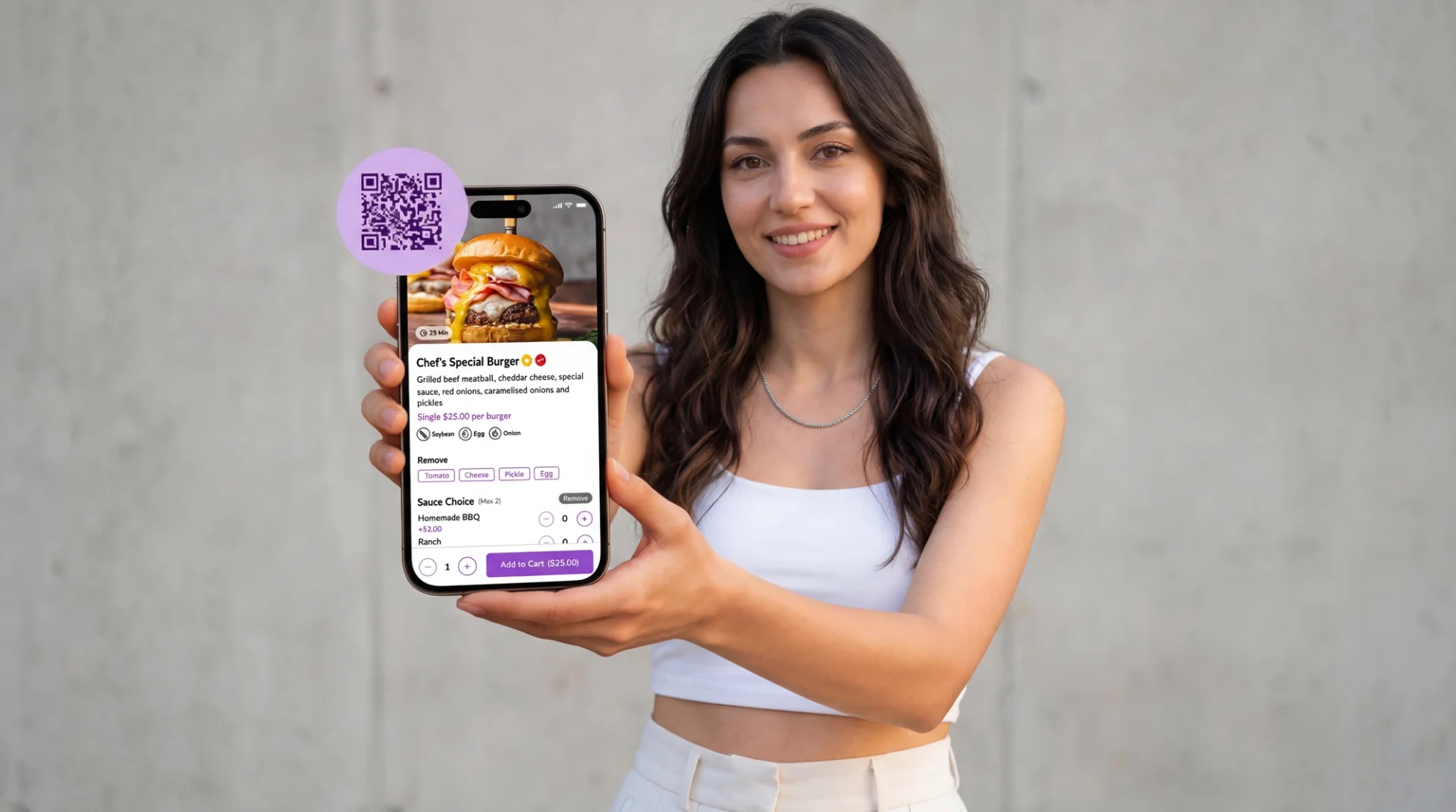
The item cards do the quiet work: portion prices side by side, allergen and diet icons, and a photo. Tap into an item and there's more: a bigger picture, a calorie figure, the selectable portion, and ratings other guests left on that dish. With ordering switched on, a cart and a service request button sit on top of all of that, so a guest can ask for the bill without waving at anyone.
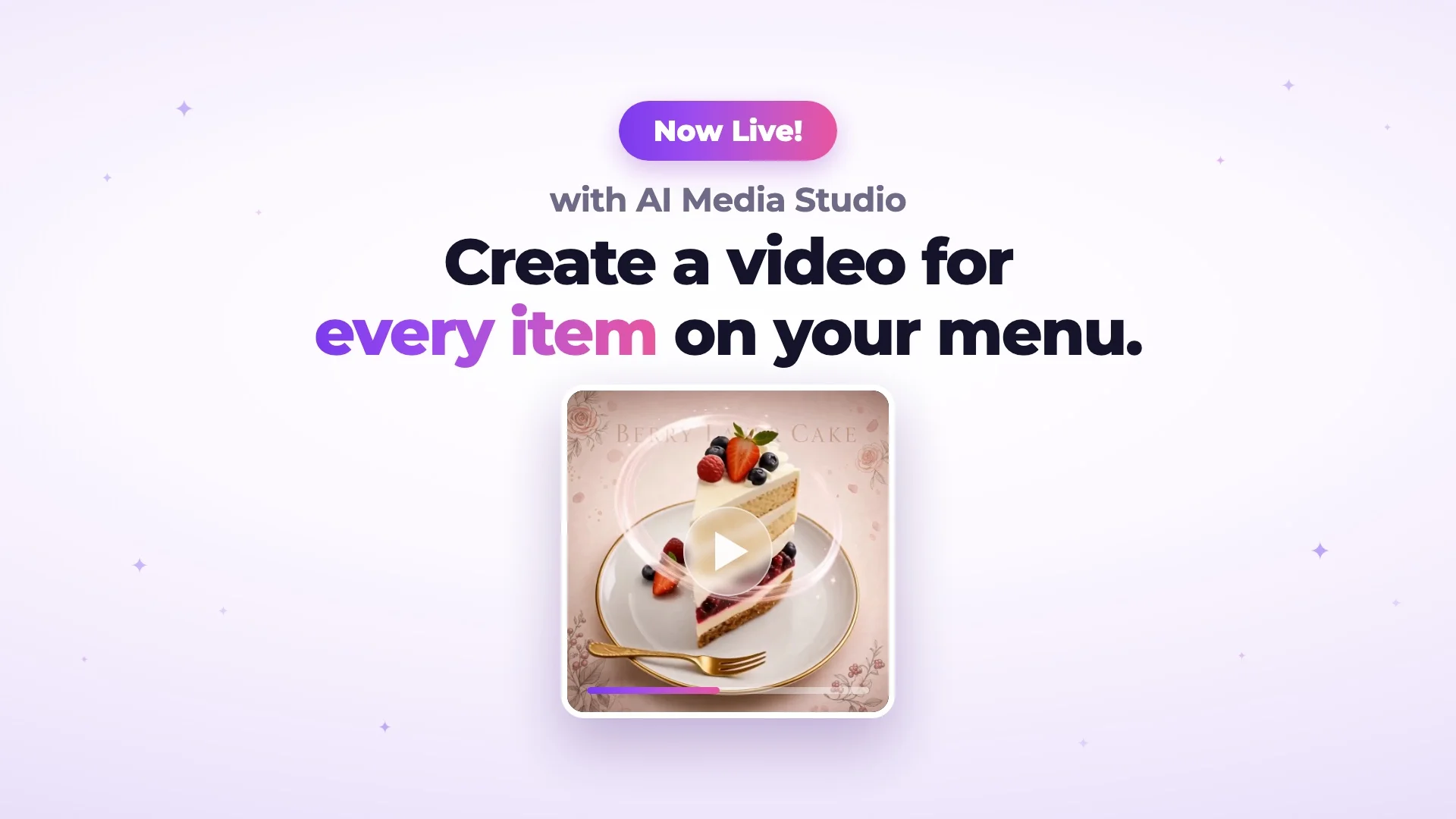
Photos are the part people skip and then blame the menu for. AI photo work runs on credits, and enhancing an existing shot costs more credits than generating a new image, so check what your plan includes before you commit to a full menu's worth. The number of menu languages you can publish depends on your plan too. The current limits are on the pricing page.
Taking Payment from the Same Code
Once ordering is on, payment is the same flow carried one step further. Checkout runs through a provider you connect, and the list is regional as much as global. Stripe and Square are on it, so are Iyzipay and MOKA for Turkey, and Myfatoorah and STC Pay for the Gulf. Which ones you can actually use depends on where you are, and that is worth checking before you promise pay-at-table to anyone.
Beyond taking a card: guests can split a bill between them, you set the tip rates on offer, and Apple Pay and Google Pay are there for people who won't type a card number at a table. If there is alcohol on the menu, age verification is a step you switch on.
Delivery and pickup run as their own channel, with a minimum order, a delivery fee, prep and travel time, and pre-orders for a later slot. For a delivery-only kitchen with no dining room, those settings are the whole job and the table codes never come up.
Where QR Menus Don't Work
Not every guest scans. Some phones are flat by dinner, some guests hand the phone to whoever is youngest at the table, and some just don't want to. A small stack of printed menus behind the pass costs almost nothing and settles that at the table.
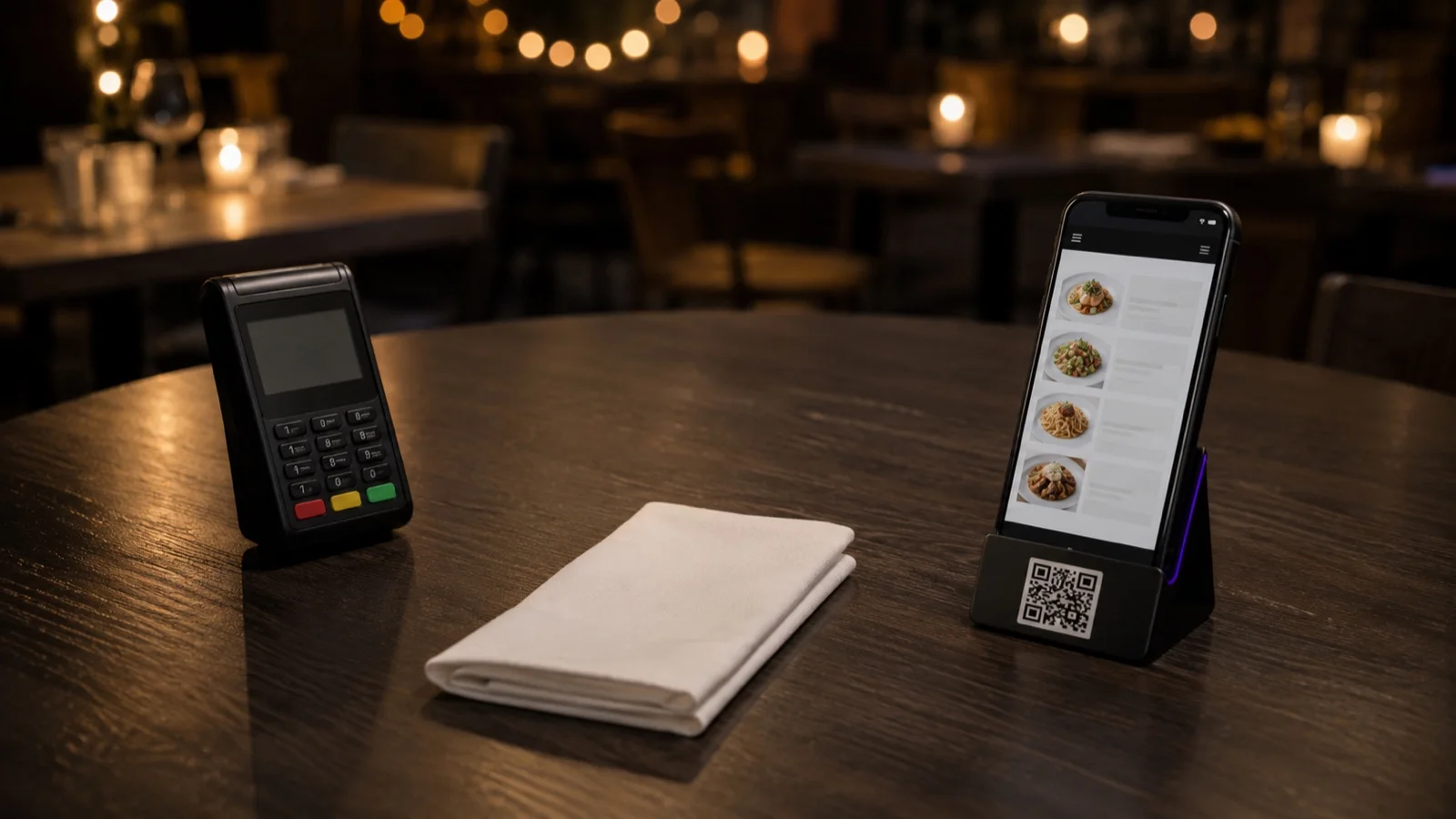
Light is the other one. A code that reads instantly in daylight can fail on a candlelit table at nine in the evening, and the only way to find that out is to try it at nine in the evening.
A QR menu is a scan surface, not a search surface. It works for people already sitting in your room. Someone searching for your menu on Google before deciding where to eat is a different job, and that one belongs to your website.
It also doesn't touch anything that happens before the guest arrives. A table that was booked and never filled is a separate problem, and the first move there is measuring your no-show rate before adding a deposit policy. The code survives a price change. The print next to it does not: a table tent with the wine list on it is still showing last season's prices.
Test It on One Table First
Before you print for the whole room, put codes on one table, or one section, and run it for a week. Count how many guests scan without being prompted, how many ask for a printed menu anyway, and whether orders reach the screen with the right table attached. Changing your mind at that scale costs a sticker.
If you want to see how this looks with your own menu and floor plan, you can request a FineDine demo.
| What changes | One code per table | One code for the whole venue |
|---|---|---|
| Order attribution | The table travels with the order | The table has to be collected separately |
| Where you can print it | Table tent, sticker, menu holder | Also flyers, window, takeaway bag, receipt |
| When the layout changes | New codes for the new tables only | Nothing to reprint |
| Fits | Table service with a floor plan | Counter service, bars, delivery and pickup |
Frequently Asked Questions
- Do guests need an app to scan a QR code menu?
- No. On any phone from the last several years, opening the camera and pointing it at the code brings up a link to tap. Older handsets sometimes need a free scanner app, so printing the menu's web address in small text under the code gives those guests a way in without asking anyone for help.
- Can I make a QR code menu for free?
- Generating the code is free anywhere. The cost sits in what the code points to: a hosted page you can edit, translate, and take orders from is the part you pay for. If your menu rarely changes and you only want guests to read it, a free code pointing at a page with a stable address is a fair place to start.
- Can the same QR code handle delivery and pickup orders?
- Delivery and pickup are set up as their own channel, with a separate minimum order, fee, and prep time, so they get their own code rather than sharing the one on the table. That is the code for a takeaway bag, a flyer, or your social profiles.
- Do guests need Wi-Fi to open a QR menu?
- They need a connection of some kind, because the code opens a web page. Mobile data is usually enough. In a basement dining room or a cellar bar where signal drops, put the guest Wi-Fi password on the same card as the code and keep a few printed menus within reach.
- Does a QR menu replace a POS?
- It doesn't have to. QR ordering and payment can run on their own in a small operation, and if you're keeping your existing till, POS integrations cover Foodics, Clover, Square, and Simpra among others, so orders don't get typed twice.