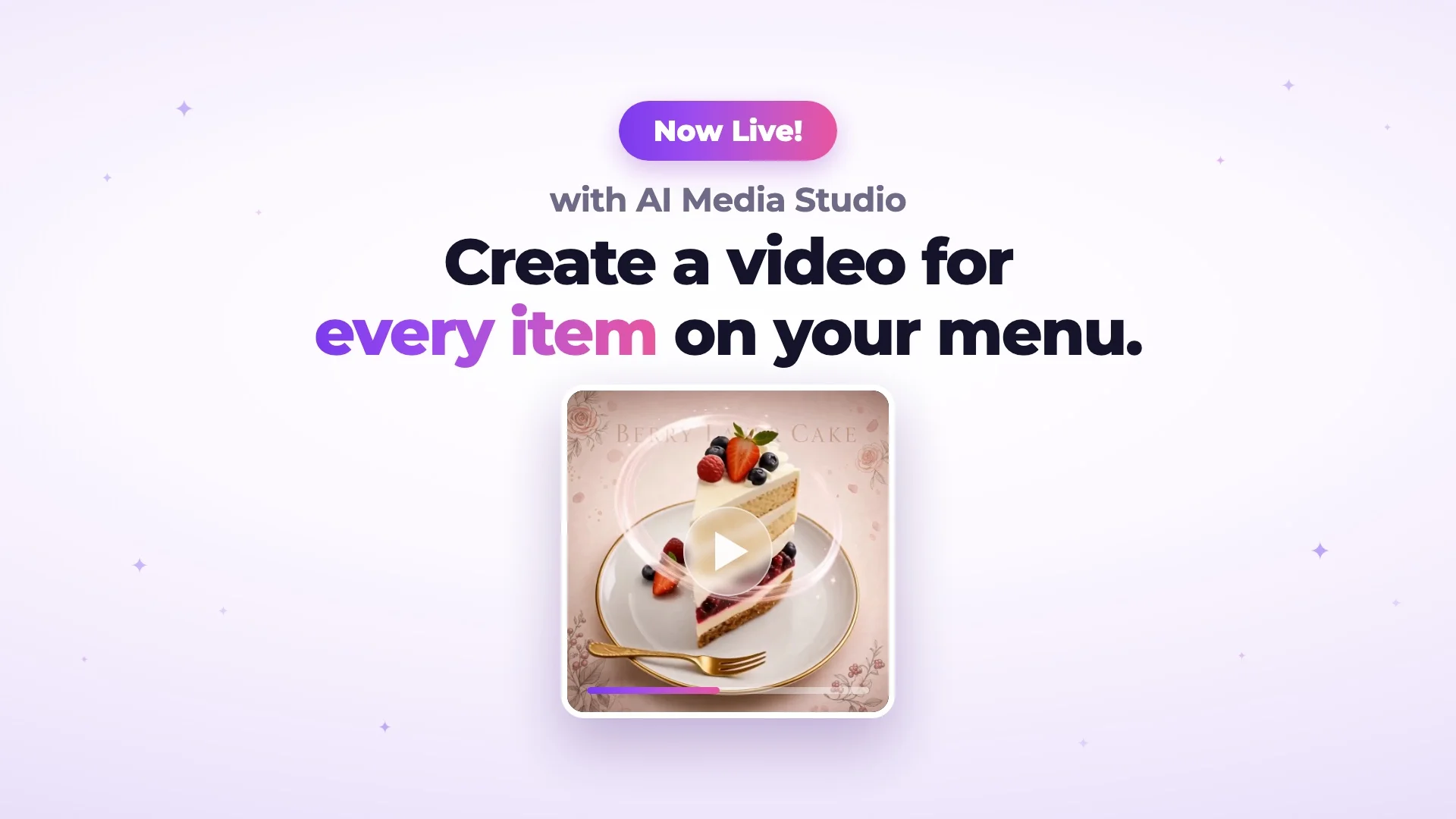
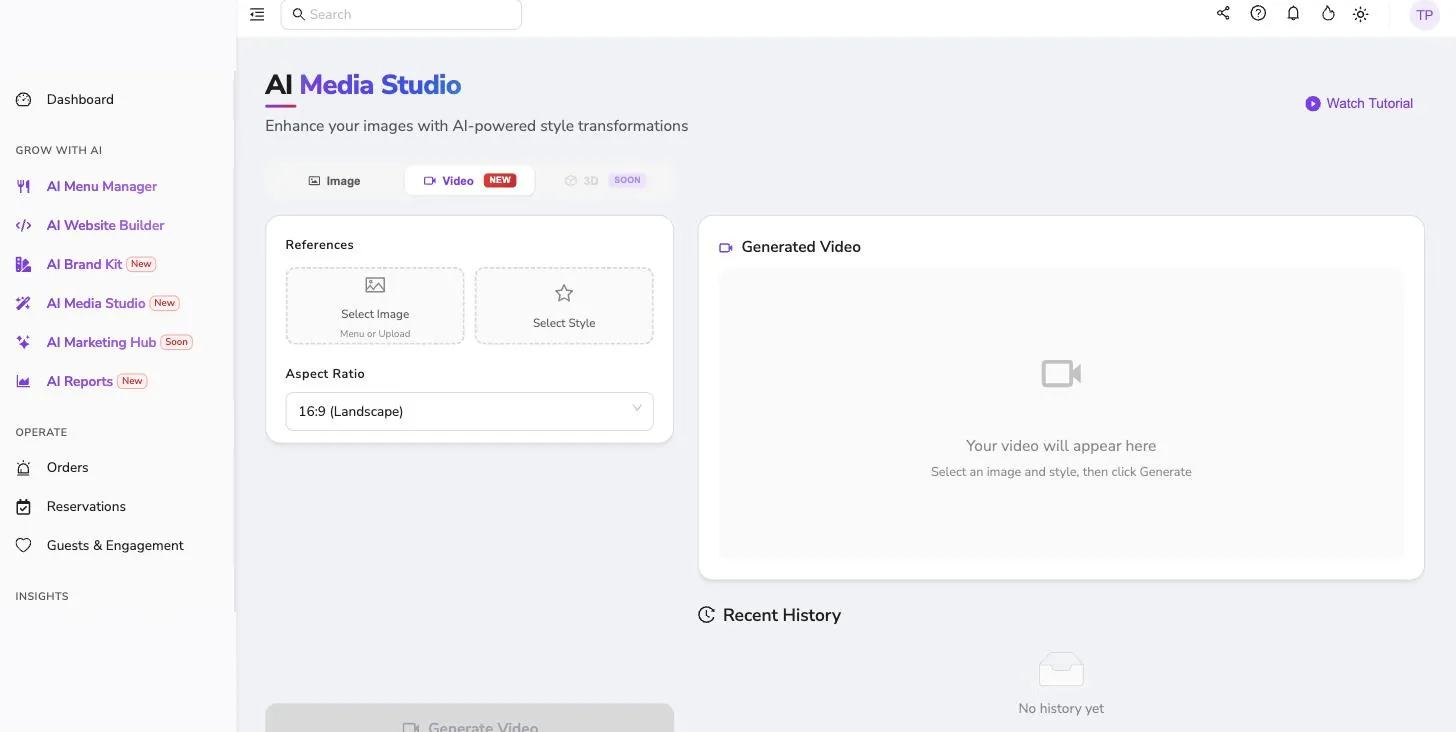
AI Media Studio can now turn the dish photos you already have into short videos. Pick a product photo from your menu or upload one, choose one of the ready-made video styles, and you get a video sized for Instagram, TikTok, your website or your digital menu.
The real decisions are not in the generating. They are which photo you start from, which style fits the product, and where the video will end up. This post takes those three in order.
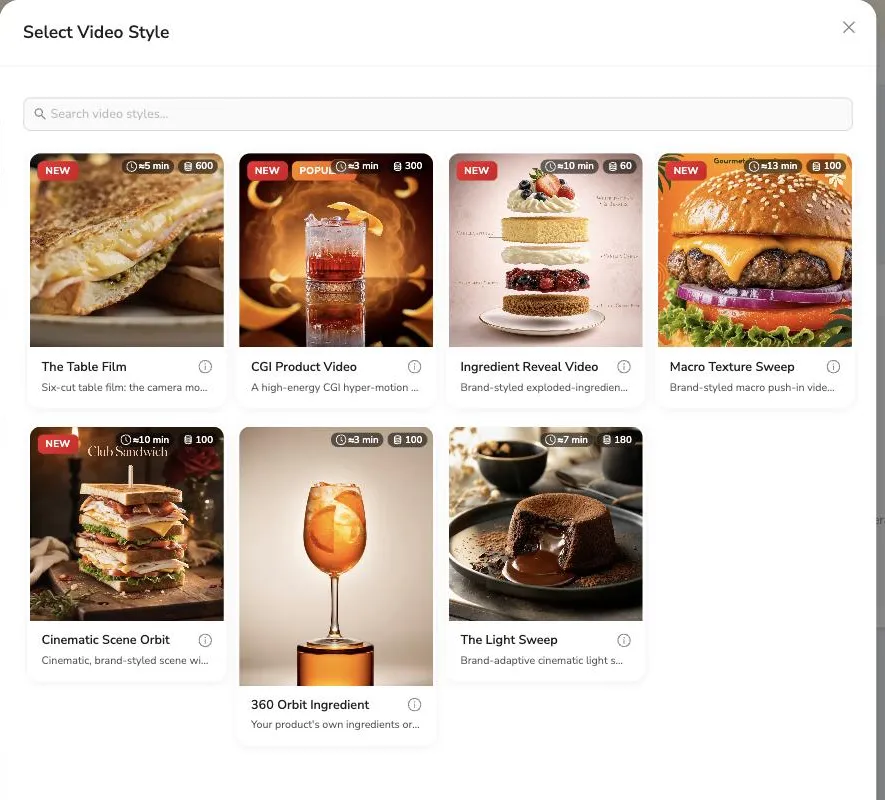
The flow itself is short: in the Video tab of AI Media Studio you choose the source image, the style and the format, then generate. Each style shows its preview, its credit cost and its estimated time before you pick it, and everything you generate stays in Recent History. There is no text to write and no video timeline to assemble.
1. Which Photo Should You Start From?
The source image comes from one of two places: the product photos already in your menu, or a new file you upload. If your menu is long, the Recommended filter narrows the list.
That first photo decides more than anything else. A sharp, well-lit frame where the product is clearly visible is a better starting point; a dark shot taken across a crowded table leaves the camera less to work with. If your current photos are weak, enhance them on the Image side of AI Media Studio first and use the result as your source.
2. Which Style Fits Which Product?
What separates the styles is not how the picture moves but how it describes the food. Some put the product forward as it is, some build a more advertising-like scene around it, and some show what is inside it. They keep their English names in the panel.
To put the product forward as it is
- The Table Film cuts between six views of the same plate, from a wide shot to a macro, moving the camera while the dish stays still. It suits plated dishes where the presentation is the point.
- The Light Sweep runs a light across the product against a dark background for a more cinematic look. Worth trying on desserts and anything that reads well on dark.
- Macro Texture Sweep brings the camera close to the texture and uses your brand colour behind it. It makes sense for products with a strong texture, such as burgers or bakery items.
For a more advertising-like look
- CGI Product Video uses faster, commercial-style motion. It can be the most eye-catching option for drinks and cocktails, or wherever the movement itself is worth showing.
- Cinematic Scene Orbit builds a dressed scene around the product and turns the camera slowly through it. Use it when you want to show the setting along with the dish.
To show the ingredients and the build
- 360 Orbit Ingredient circles the product's ingredients around it. It works where the contents are visually distinct, drinks especially.
- Ingredient Reveal Video separates the product into its layers and names each one on screen. For layered products, cakes, burgers and sandwiches, it is the most direct way to describe what is in them.
One thing to plan for: some styles write the product name or the ingredient names into the video itself, which matters if your menu runs in more than one language.
3. Choose the Format for Where the Video Will Be Used
The format is chosen before generating, so it helps to know where the video is going first.
- 9:16 for Reels, Stories and TikTok.
- 4:5 for vertical feed posts.
- 1:1 for square posts and your profile grid.
- 16:9 for your website, YouTube and horizontal screens.
- 4:3 and 3:2 for photo-led pages and near-horizontal placements.
4. What Does the Brand Kit Change in a Video?
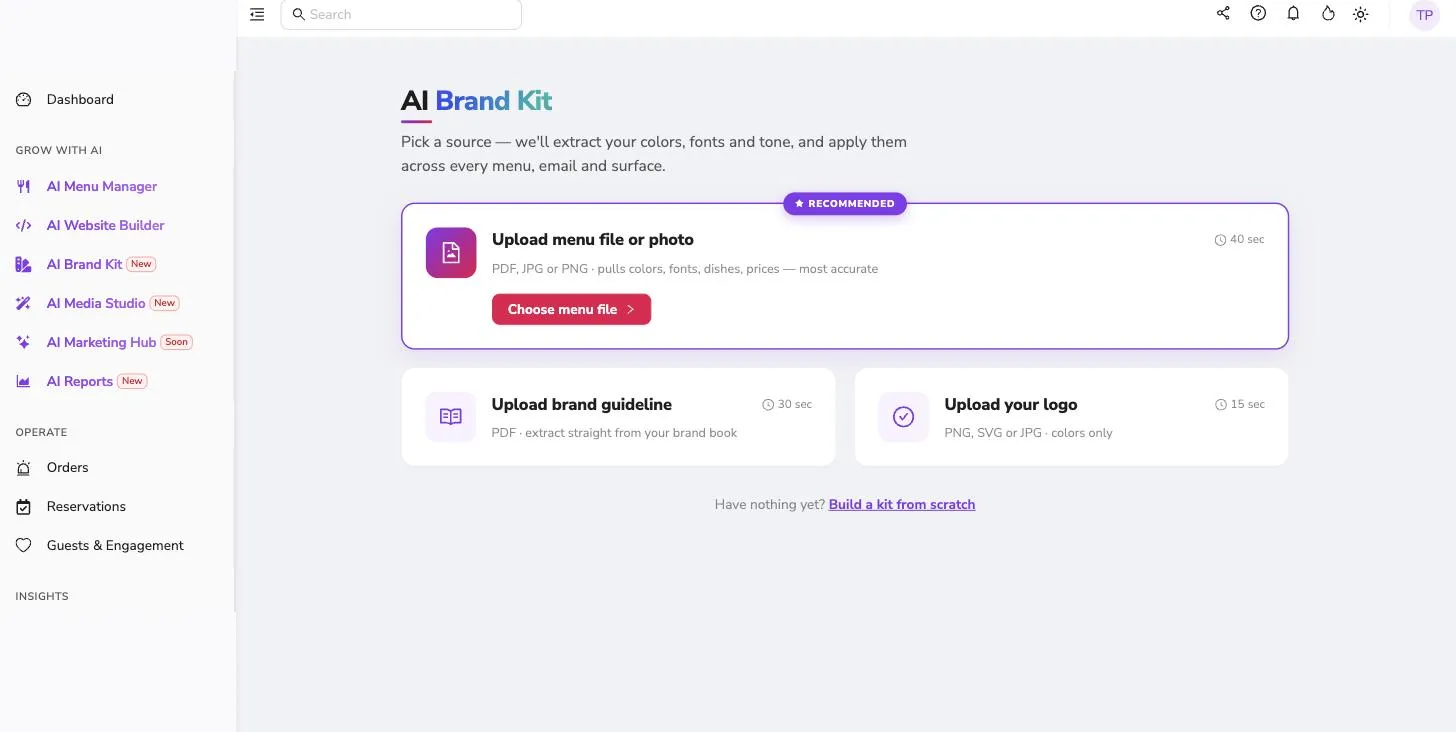
With a Brand Kit in place, the styles that support it can use your brand colours and typography. The same information is applied across the AI features, your mobile menu and your website.
You can start a Brand Kit from your existing menu, your brand guidelines or your logo. What can be extracted depends on the source: the menu file carries colours, typography, products and prices together, which is why the panel recommends it, while a logo gives colours only. If you have none of them, you can build one from scratch.
5. What Can You Do With the Video Once It Is Made?
- Download it.
- Compare it against the original image.
- Assign it straight onto a menu item.
As for where it goes: the product itself on your QR menu, the homepage background of your tablet menu (Design and then Tablet Menu, with the file under 10 MB), your restaurant website and your social accounts. On a tablet menu the video is seen inside the menu itself, while the guest is browsing.
6. More Styles Are on the Way
We add new styles to the gallery regularly, and 3D is next. Your feedback this week shapes what comes after it: which product suited which style, which video you posted, and which style you want to see in the list.
Frequently asked questions
- Does making a video spend credits?
- Yes. Each style has its own credit cost and its own estimated generation time, and you see both in the picker before you choose a style.
- Can I try several styles from the same photo?
- Each generation is a separate run, so you can work through different styles with the same source image. Everything you generate stays in the Recent History list, which is where you compare them.
- Do all the styles use the Brand Kit?
- Some of the styles use your brand information, not all of them. If brand consistency matters to you, the preview in the picker is the quickest way to tell.
- How long is the video?
- The length depends on the style you pick and typically falls between 6 and 15 seconds. The Table Film is the longest because it is built from six separate cuts.
- Can I use the video on my QR menu?
- Yes. A menu item carries both an image and a video, so the video can sit on the product itself.
7. How to Try It
Open AI Media Studio in your dashboard and make your first video from a product photo that is already in your menu. If you use a Brand Kit, check your brand settings before generating, then pick the format that matches the channel you are making it for.