Yes, a cafe can use a QR code for more than showing the menu, and it works even if you take orders at the counter. The guest who paid at the register can add a second flat white or a croissant from their seat without joining the line again. The guest who orders nothing still sees what you sell. And the barista sees the order on screen with the table number and the milk already chosen. Which parts you need depends on where your queue actually forms.
The Second Order From a Seat
Picture a counter cafe at mid-morning. A guest orders a cortado at the register, takes the table by the window, and twenty minutes later wants something sweet. Without a code, that means leaving the laptop, rejoining the line and hoping nobody takes the seat. With a code on the table they scan it, add the pastry, and the order reaches your team tagged with that table. Nobody has to shout it over the grinder.
So even if the counter stays your main way to order, the code earns its place on the add-ons, the refills and the people who just don't feel like standing up again. The first order can still happen at the register. If you leave online payment off, the extra order is settled at the register like any other. If you turn payment on, the guest can pay from the phone.
A cafe that wants to drift away from the counter can run the same codes the other way round: guests sit, scan and order, and your team brings everything out. That's table service on the same menu, so you can move from one to the other without rebuilding anything.
Guests Who Order Nothing Still Read the Menu
Plenty of people scan a code just to look. They're deciding whether to stay, or waiting for a friend, or checking for oat milk before they commit to a seat. An open menu on the phone shows the whole range, including what isn't in the pastry case: the breakfast plate, the seasonal drink, the sizes. Photos, descriptions and allergen icons are on the same screen, so questions you'd otherwise answer at the register get answered before the guest reaches it.
This is also the cheapest part to set up. A view-only code needs no ordering configuration at all.
What the Guest Sees After Scanning
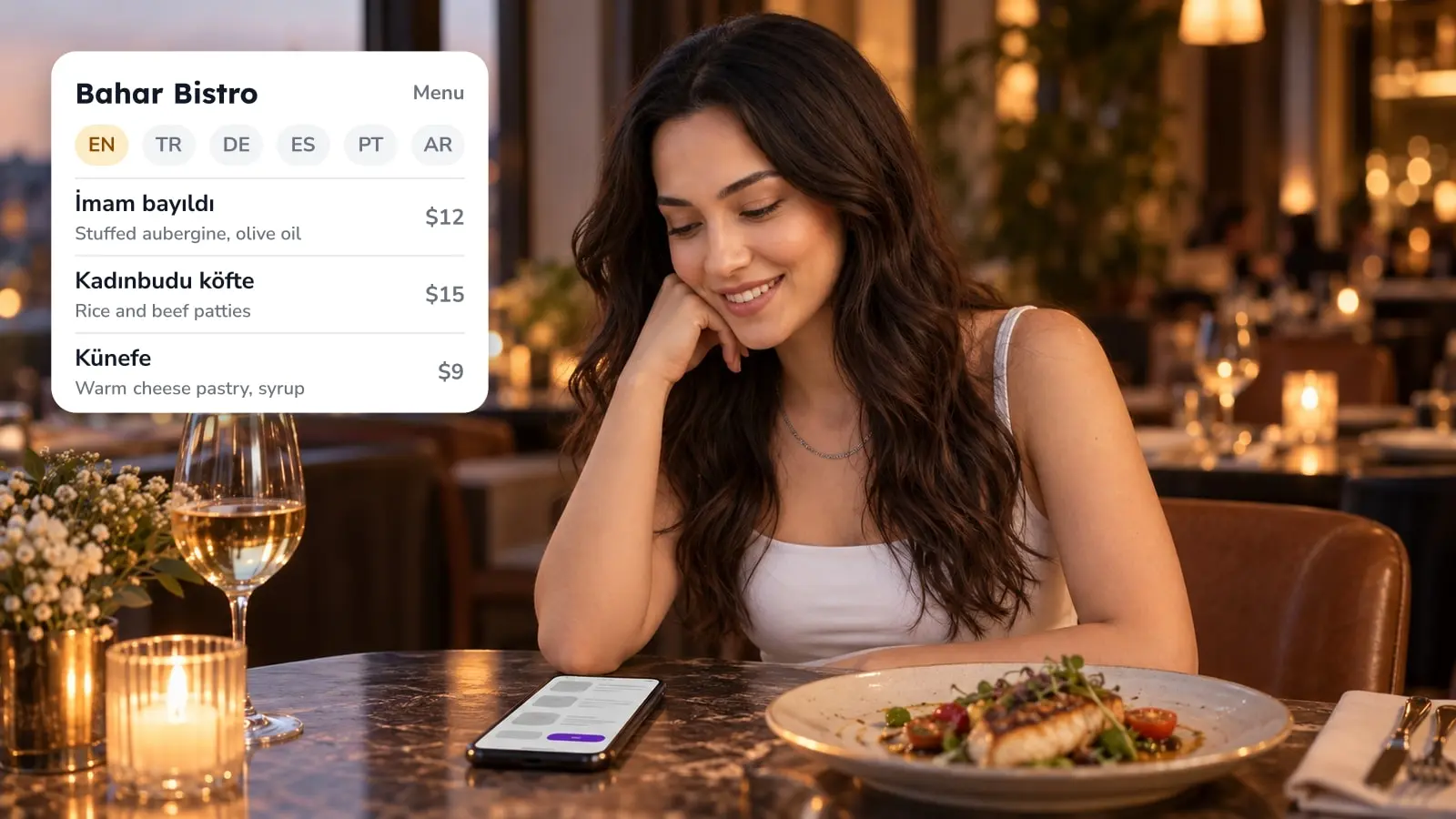
The guest points the phone camera at the code and the menu opens in the browser, with no app to download. That suits a cafe, where a visit can be short and nobody wants to install anything for a coffee. The first screen is a welcome page with your cafe's name and a language switch. One tap later comes the menu, with category tabs and a search box. Opening an item shows a larger photo, the price options such as small and large, and the allergen icons. With ordering switched on, a cart and checkout come with it.
Your job is to keep that first view current. Items you've run out of can be marked sold out, and items that belong to only part of the day can be set to show on certain days and hours, so nobody orders the last croissant at 2 p.m.
One Code per Table Keeps Orders Attached to the Right Seat
With a separate code on every table, the table number travels with the order on its own. With one shared code, the guest types the number in themselves. If you have ten or fifteen tables, printing a code for each is worth it. If you have a few bar stools and one long shared table, a single code may be enough.
Pickup works the same way. A code at the takeaway window can lead to a pickup menu that's separate from the table codes, so your team can see at a glance who is sitting and who is waiting outside.
Options Chosen by the Guest, Read by the Barista
Shots, syrups, milk alternatives and sizes can be set up as options on each drink. The guest picks them on the item screen, so the order reaches the bar screen with the choices written out instead of half-heard across the counter. For you, those are visible, priced additions to what would otherwise be a plain latte. And a guest scrolling the options on their own phone, with no line behind them, has time to read them, which is the real difference from ordering out loud.
Drink Ready Is Not the Same as Bill Closed
On the orders board a ticket moves through live, ready and closed. Ready belongs to the bar, closed belongs to the money, and it helps to keep those two jobs apart. Marking a drink ready tells the floor it can be carried out. It says nothing about money. Paying and closing the bill is its own step.
The split matters most in table service. A guest orders a coffee, then a sandwich, then a second coffee. Staff move each order along as it's prepared, and payment stays a separate step, at the register or on the phone. Cash or card at the register, or card and wallet payment on the phone, are all set in the ordering settings, and a tip prompt can be added. Online payment goes through the payment provider you connect, so check the Marketplace list for which providers cover your country before you promise guests a particular wallet.
In a counter setup the order is reversed: the guest pays first, so the money is settled before the drink is made. The barista calling the drink is only the preparation step.
A Free Menu Code Is Only the Menu
A free generator gives you a code that opens a menu or a PDF. That's enough if all you want is the menu on the table. It doesn't know which table the guest is sitting at, it doesn't pass drink options to the bar, it doesn't take payment, and your team has no board to work from. Those are exactly the pieces the ordering code adds. In FineDine they're two separate code types, one for viewing and one for viewing and ordering, so you can start with the menu and add ordering later without redoing it. The article on what stays free and where it stops draws that line in more detail, and costs are on the pricing page.
Which Cafe Setup to Build First
Start where your queue actually forms. If it's the line at the register, put codes on the tables so add-ons stop coming back to it. If you're mostly takeaway, a pickup code at the window comes first. If guests mostly sit and you'd like to stop taking orders at the counter, build the table setup with one code per table. The menu is the same in all three, so you can run one for a week and extend it if it holds up. For the scan itself, how scan-to-order works at the table covers it, and QR ordering with fast checkout covers paying from the phone.
Frequently Asked Questions
- Do I have to reprint the codes when I change the menu?
- No. The code points to your live menu, so changes to items, prices and photos show up for the next guest who scans. Menu edits never need a reprint. If you use one code per table, a new table needs its own code, and moving from a view-only code to ordering means printing the ordering code.
- Can the same menu serve a takeaway window?
- Yes. A menu can be active on several channels, including dine-in QR, pickup and delivery, and the pickup channel has its own settings such as a minimum order and a note for guests.
- Can guests tip from their phone?
- There's a tip option in the ordering settings. When it's on, guests can add a tip while they order.
- What if my cafe also sells wine or beer?
- The ordering settings include an age verification option for alcoholic items.
- Can the codes match my cafe's look?
- Yes. The QR colors and background can be changed before you download them, and the menu itself can take your colors, font and background image.