How To Assign a Modifier Group To An Item (After Integrating with POS System)
Updated: November 19, 2025
Assigning a modifier group to an item is a straight forward step, but when an integration with a POS system is involved, the process becomes a little bit different. Below are the steps that you need to follow to accomplish your task:
- Make sure the modifier group is created and assigned to the item in the POS System
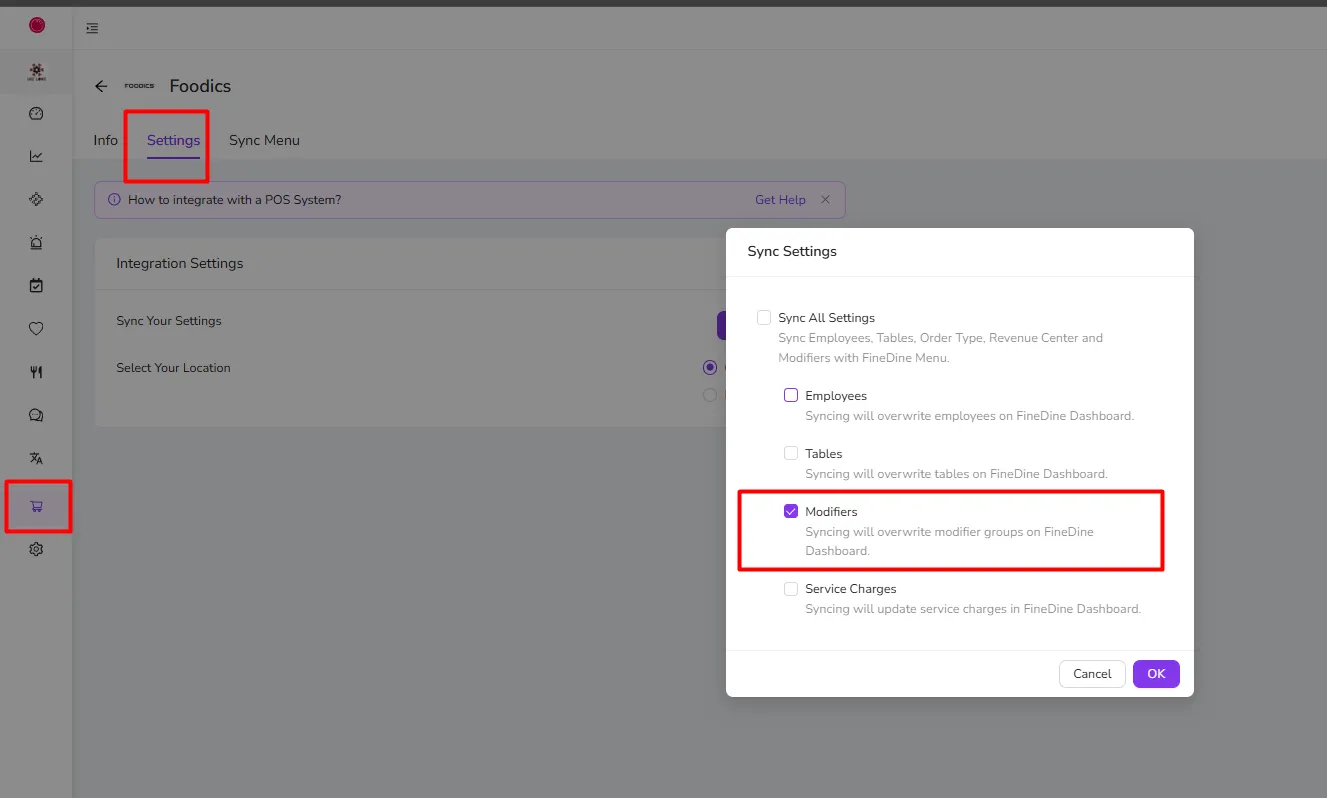
- Go to FineDine Dashboard,>Market Place>My Integrations>(Your POS) Configuration page, and select "Sync Settings" Tab
- Select the modifiers only the be the ones to be synced (This will import any new modifier groups you created in the POS to FineDine
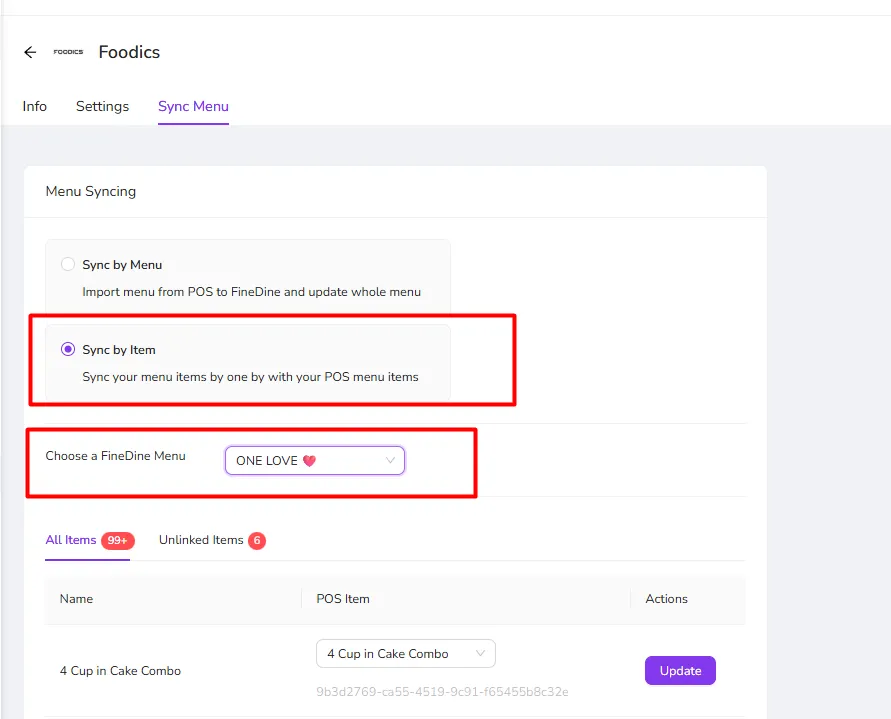
- Go to the Sync Menu Tab and select "Sync by item"
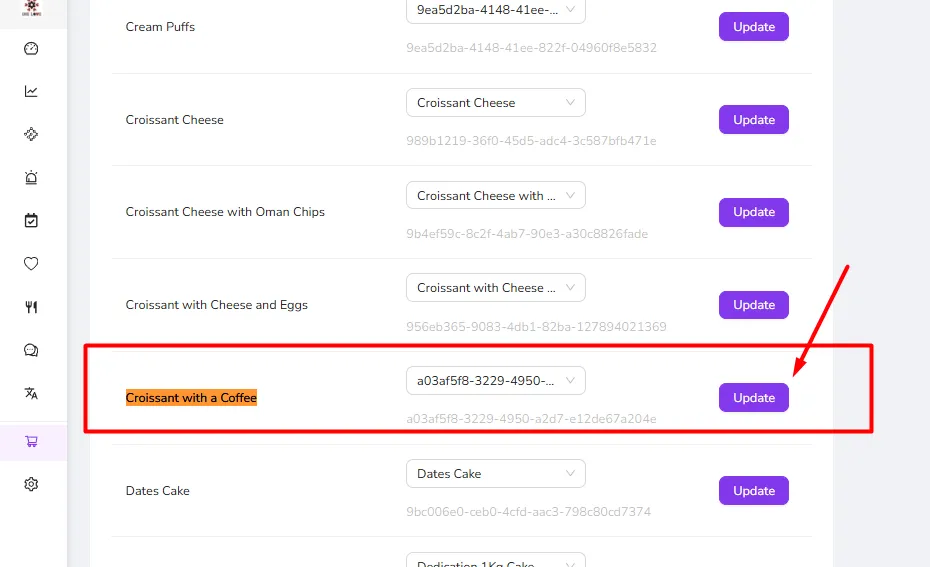
- Find the item you want and click the update button
Was this article helpful?
Related articles
Still need help?
Our support team is here for you. Start a chat and we'll get you an answer.