How to delete a section & item?
Updated: September 22, 2026
In this article, I will guide you with the steps to delete a section or an item from your menu!
The first step you need to do is go to the menu where this section or item is located. Then click on Edit Menu.

If you want to delete a section, you need to go to where this section is located in your menu and click on the three dots on the right side.
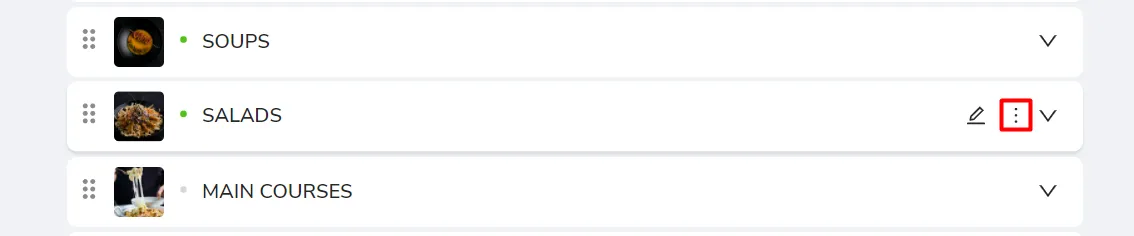
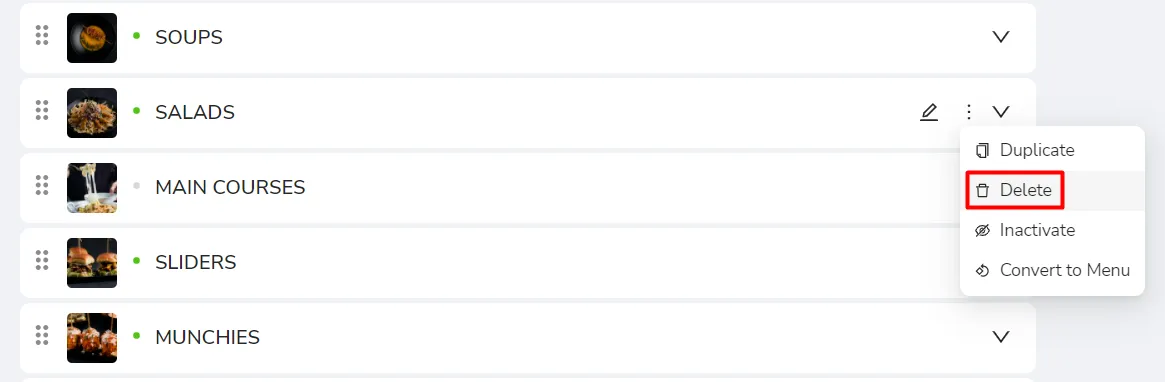
You will be able to choose Delete from the listed options that will show, and you're good to go!
If you want to delete an item, you will need to go to the section where this item is located in your menu, then click on the arrow on the right side to show all the items under this section.

Then click on the three dots on the right side of this item and choose delete.

We advise you to make sure about the section you're going to delete because you will not recover it back once you have deleted it.
Was this article helpful?
Related articles
Still need help?
Our support team is here for you. Start a chat and we'll get you an answer.