How to Update the Menu on Tablets?
Updated: September 22, 2026
When you want to reflect the changes you make in the Dashboard on your tablet devices:
- Make sure that you are logged in to the FineDine Menu Tablet App with your Credentials and your Tablet device has a proper internet connection.
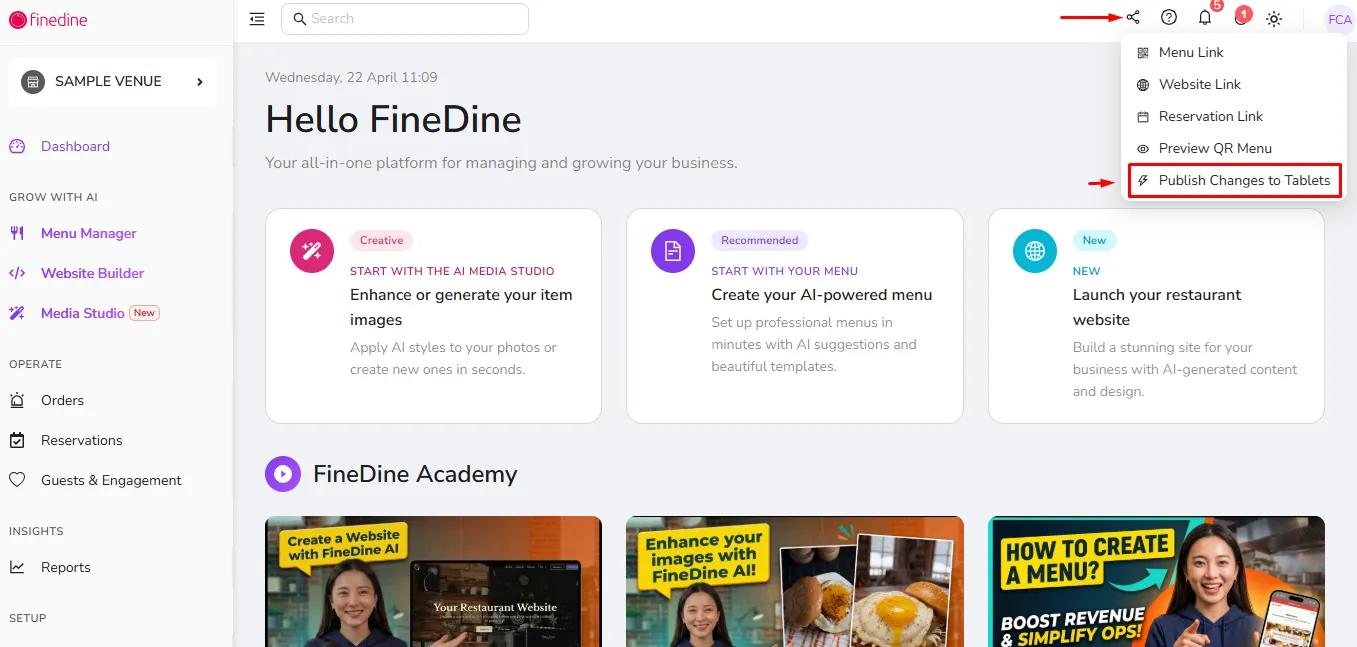
If you've made all the changes you want and saved them, you can click the "Share" icon at the top of the page to send these updates to your tablets.
How to manually update your devices?
- Simply tap 3 times on the FineDine logo at the bottom of the home screen
- Select “Venue Profile”
- Then tap on the SYNC button, which will reload the menu with the latest changes.
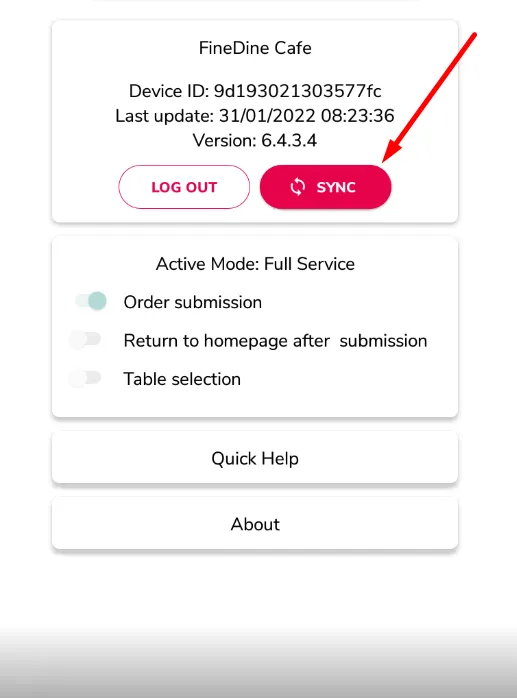
You can always check the latest update date & time on the Venue Profile.
*Please make sure that your tablets have a proper internet connection and are logged in.
Was this article helpful?
Related articles
Still need help?
Our support team is here for you. Start a chat and we'll get you an answer.