Steps to take when getting "Server Stopped Responding" error
Updated: March 14, 2025
When you want to open the FineDine menu link, access your FineDine dashboard or access your menu from the tablet menu app, you may experience connection problems due to some of your internet settings restricting the FineDine services.
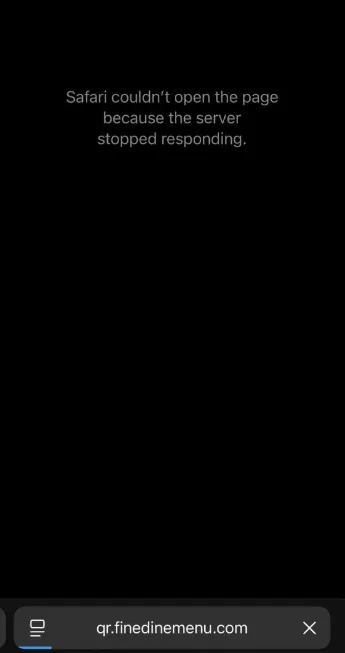
Please check the following to make sure that there are no settings in your device that may prevent you from accessing FineDine services:
- Some businesses (hotels, restaurants, etc.) use guest WiFi networks that block device-to-device communication or certain ports (Like FineDine). Try to check your WiFi connections settings if these "Guest Restrictions" are active or not?
- Some networks use custom DNS settings, which may prevent your FineDine menu from loading correctly.
- Blocked IPs: The Internet Service Provider (ISP) or local router settings may be blocking access to Finedine’s servers. To solve this, try changing the DNS to Google DNS (8.8.8.8 / 8.8.4.4).
- Check If the network is using a VPN or Proxy, as it may be blocking access to Finedine’s servers. In this case, try to disable the VPN or Proxy and try again.
- Your WiFi security settings may be set to block FineDine servers. Make sure to check your router's security settings.
If you are still having problems accessing FineDine services after checking and correcting the settings above, please contact us via the live support chat at the bottom right of our website.
Was this article helpful?
Related articles
Still need help?
Our support team is here for you. Start a chat and we'll get you an answer.