How to Navigate Through the Menu Tab in the Translation Center
Updated: April 1, 2026
The Translation Center is where you can translate the default language into different languages of your choice for over 40 languages, depending on your need. You can translate the menu, modifiers, surveys, and many more.
The Menu tab can be seen under the Translation Center. This is the tab where you can translate the name of your menu, description, section, and item names. Read through the instructions below to learn how to go through the Menu tab in the translation center.
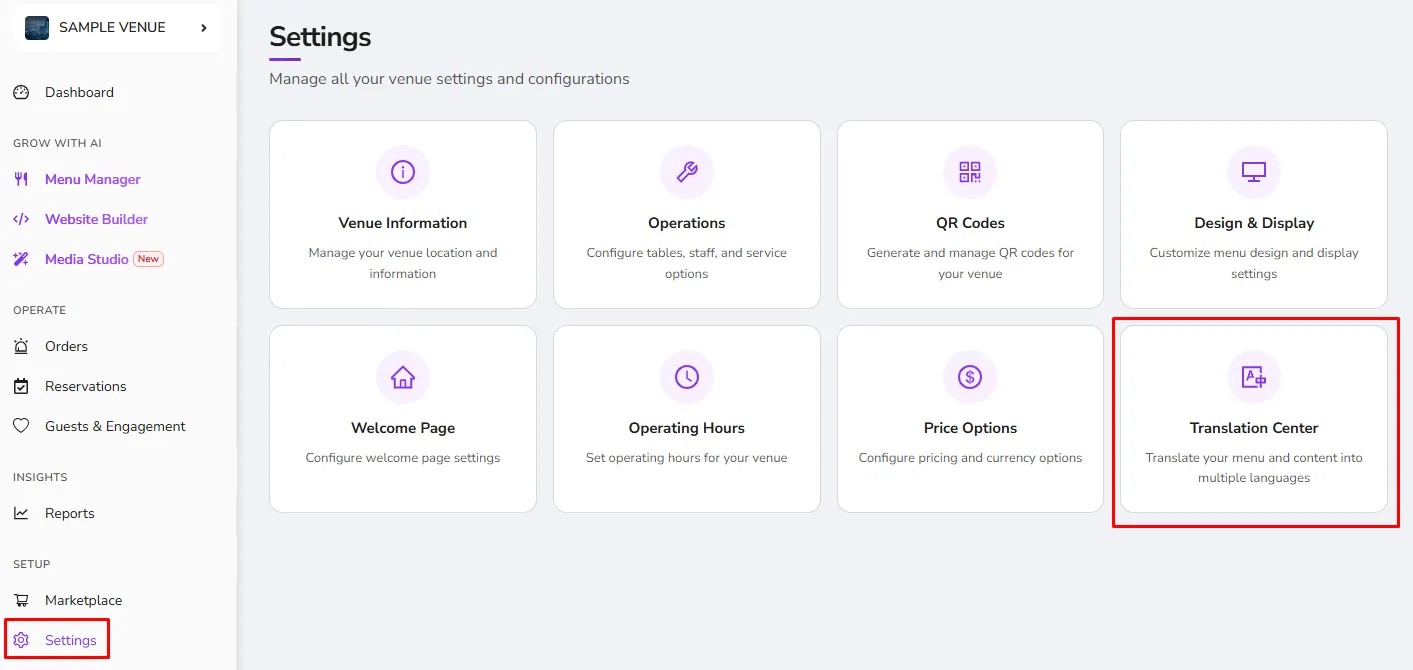
Step 1.
Click on the here icon to add the language you would like to translate. You can add up to 40 languages per entry.

Step 2.
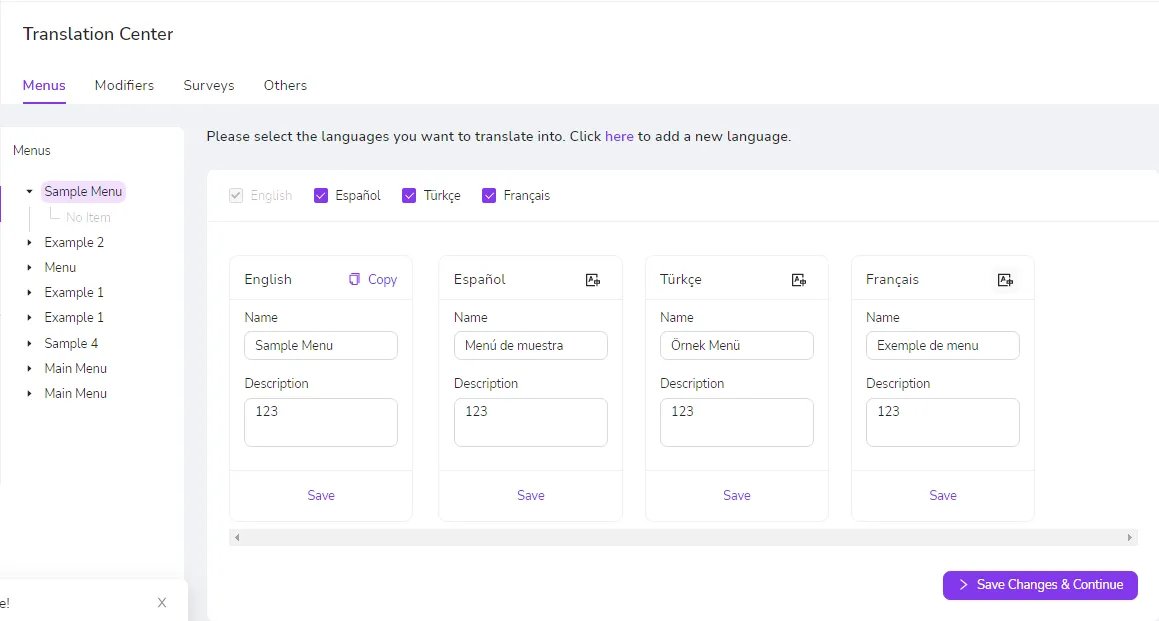
Once you have chosen the entry and language you want to translate to, you can start translating your menu, description, sections, and items. Below is an example of what it will look like if you decide to add multiple languages to which you would want to translate.
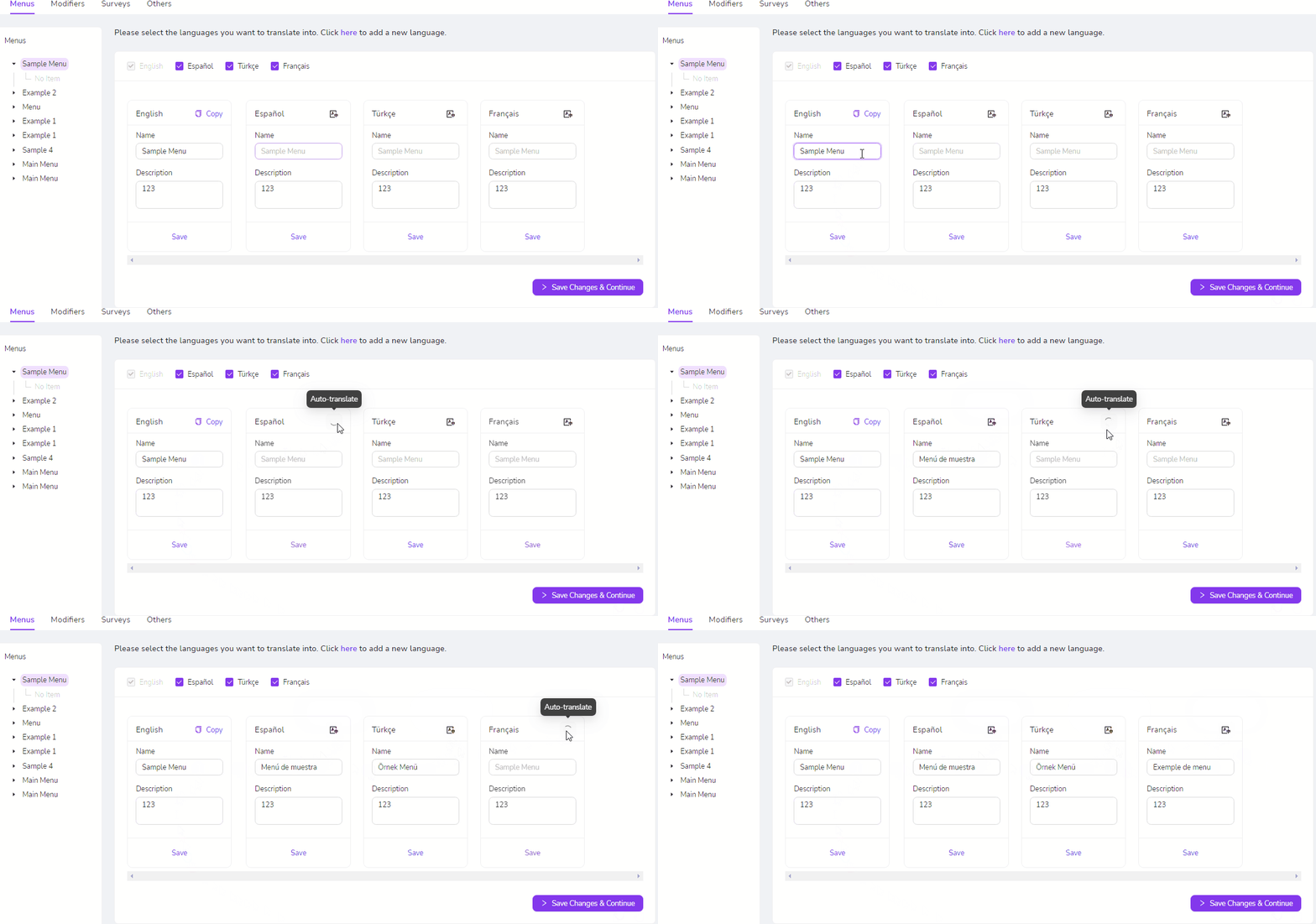
There is also an option to auto-translate your primary language to the desired languages you wish your menu to be translated to. The auto-translate button is located just on the right side of the language name you want to translate to. See the example below on how to use the auto-translate button.
Step 3.
Once you are done translating, make sure to click on the Save button in each and every language you have added to save the changes you have made. Once you have clicked the "Save" button for the language translations, click on the “Save Changes & Continue” button to save all the changes you have made in general. See the example below for your reference.
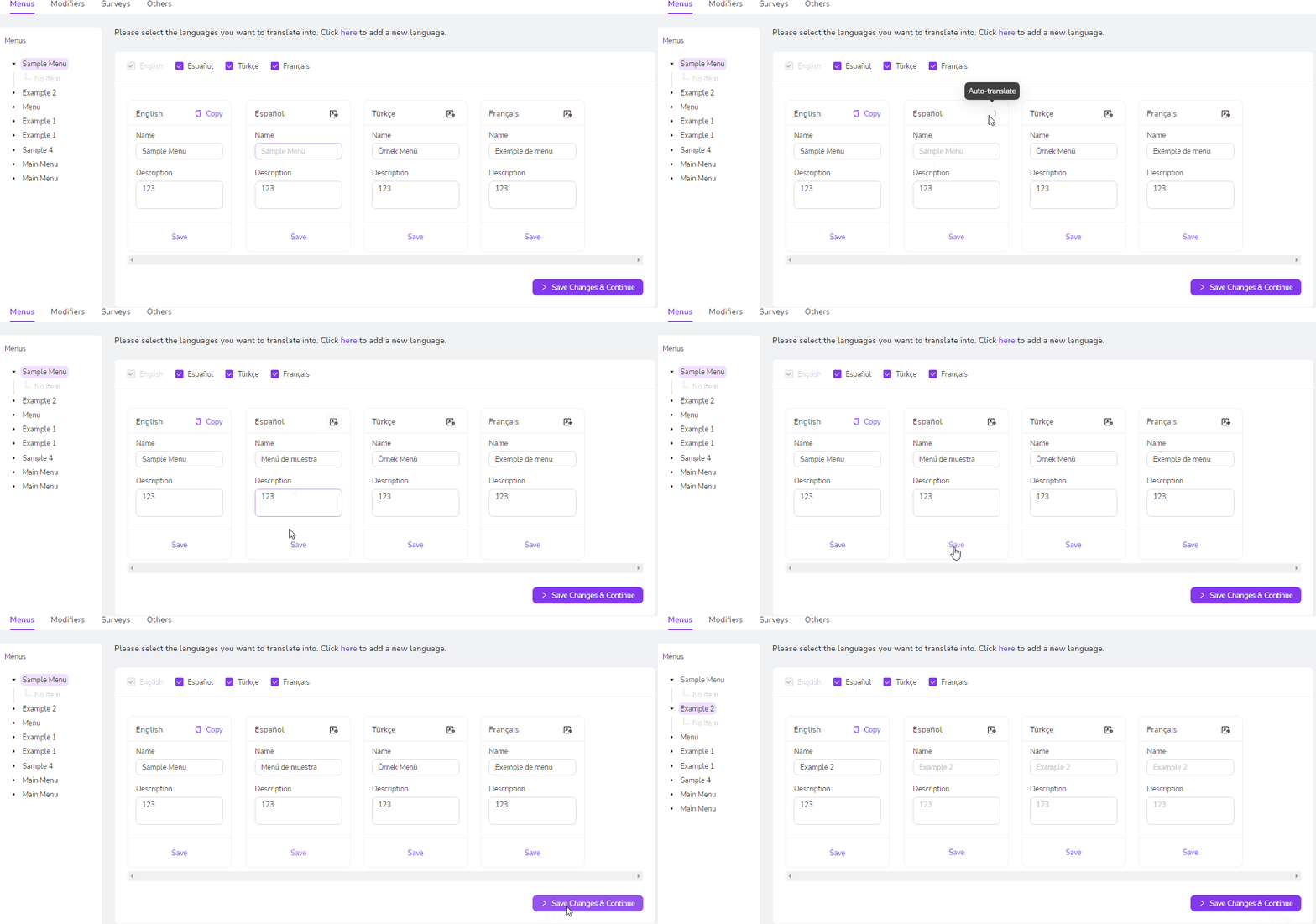
Important Note: Clicking anywhere outside the free-writing field will save the changes you made to that text
Was this article helpful?
Related articles
Still need help?
Our support team is here for you. Start a chat and we'll get you an answer.