How to Search for a Specific Item on the Tablet Menu?
Updated: September 22, 2026
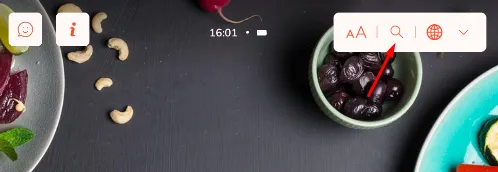
The search button appears at the top right corner of the menu in the tablet application. Guests can tap on the search button and type in the word they want to search for. All the items that have the phrase in their name or description will be listed!
The search function works on the selected language only. So if the English language is selected on the menu, the search and results will be in English. To make a search in a different language, simply switch languages from the bottom right corner first.
Writing a text in the search bar will allow the app to show all the items that include that text in their title or description. In addition, using ingredient warnings will allow the system to show them as filters to select from at the top of the page.
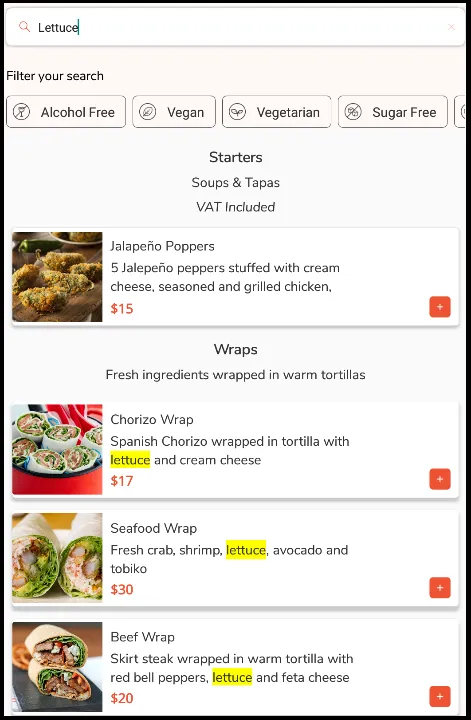
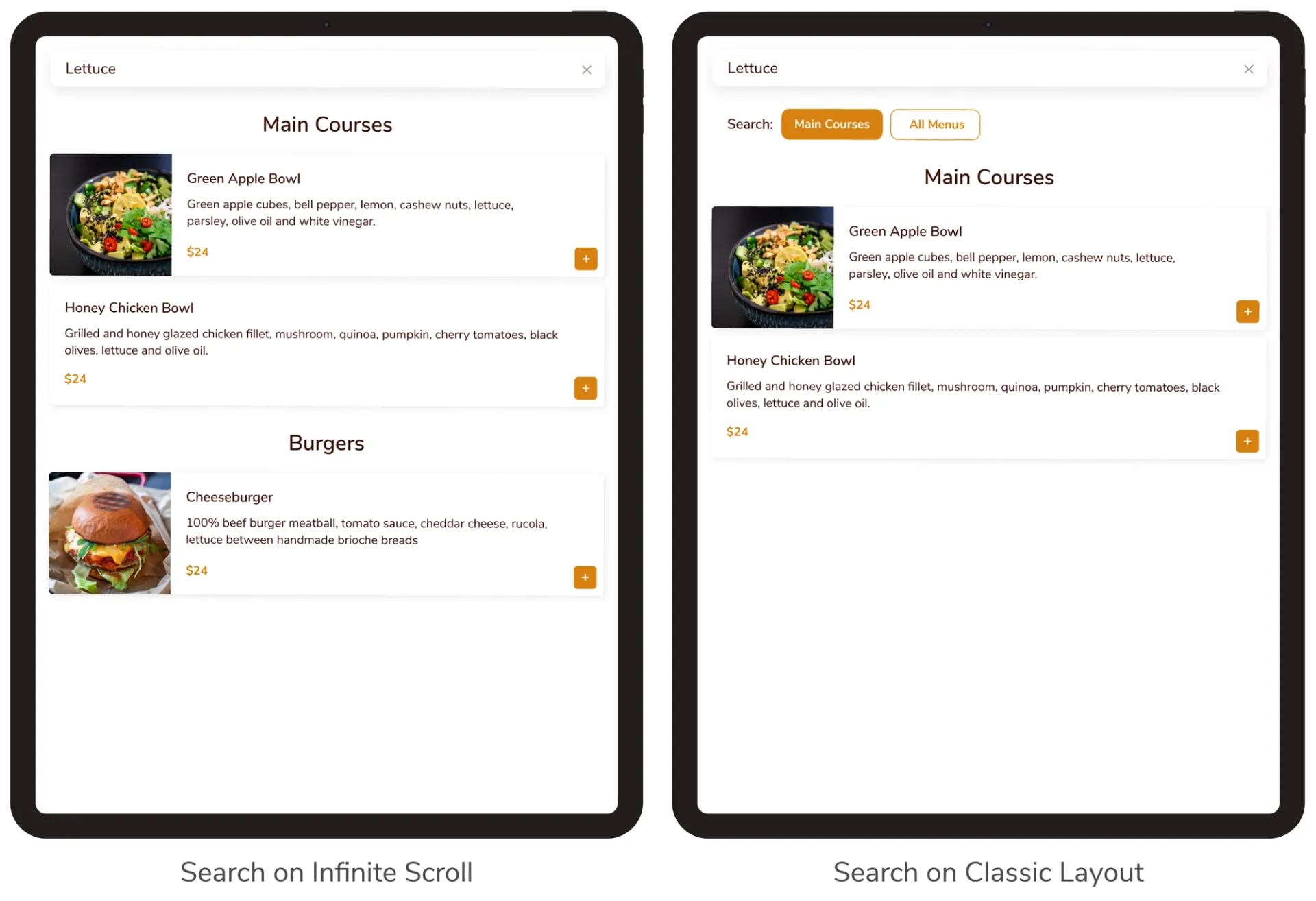
If you're using the Infinite Scroll; all results including that phrase will be listed below the search bar with the section titles right above them.
If you're using the Classic Layout; all results including that phrase will be listed below the search bar and the guest can select if they want to search in a specific section or the entire menu.
Was this article helpful?
Related articles
Still need help?
Our support team is here for you. Start a chat and we'll get you an answer.