
You have a menu on paper or in a PDF, and you want guests to open it from a code on the table. Upload the menu to a menu tool, check what it built, publish it, then print the code it gives you. The code itself is free to make. The page behind it is what you're really choosing, and with FineDine that page is free for a 14-day trial and paid after that. Some generators hand out codes that die when their trial ends, so ask which kind you're getting before you print anything.
The Code Is the Easy Part
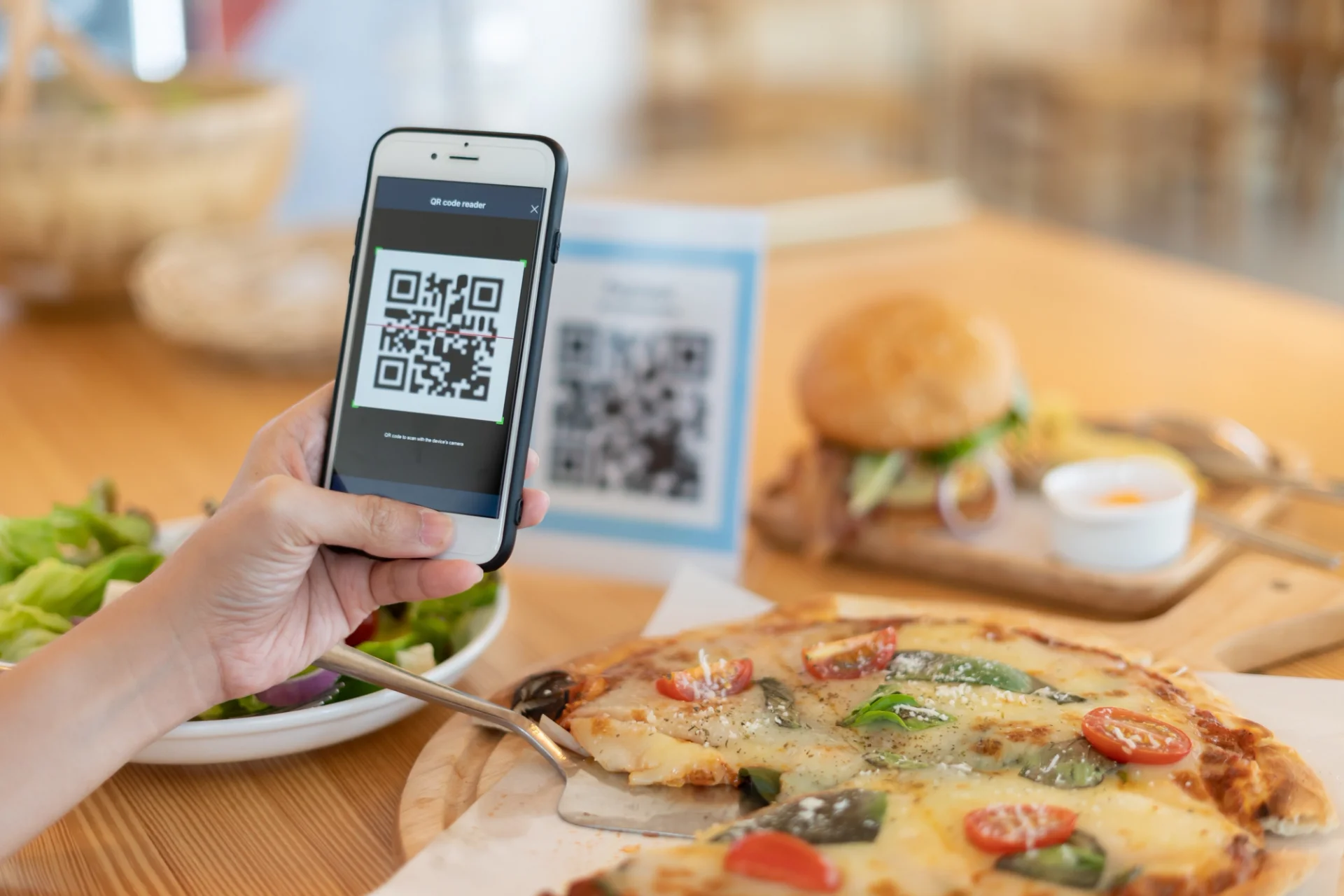
A QR code is a link drawn as a square. Any generator makes one in seconds, and on most current phones the camera reads it without an app.
The work is the page the link opens. A PDF behind the code means guests pinch and zoom on a small screen. A page left in draft shows an unfinished menu in the middle of service, and by then the code is already printed on forty table cards. Build the menu first and print last.
Turning Your Menu Into a QR Code, Step by Step
These steps follow the FineDine panel. The menu takes the time; the code takes seconds.
- Name the venue exactly as guests know it. The public address is built from the venue name and can't be edited afterward, so fix a typo or a placeholder name before anything else.
- Go to AI Menu Manager and create a menu. You can start from scratch, start from a sample menu, or use Menu Builder, which reads a photo, PDF, Excel or CSV file of your existing menu and builds sections and items from it. A trial menu holds up to 80 items, so count yours before importing a long one.
- Read what the import produced, price by price and name by name. Photos of printed menus are where misread numbers are most likely to slip in. Importing uses AI credits, and a CSV import opens a new menu instead of overwriting an old one.
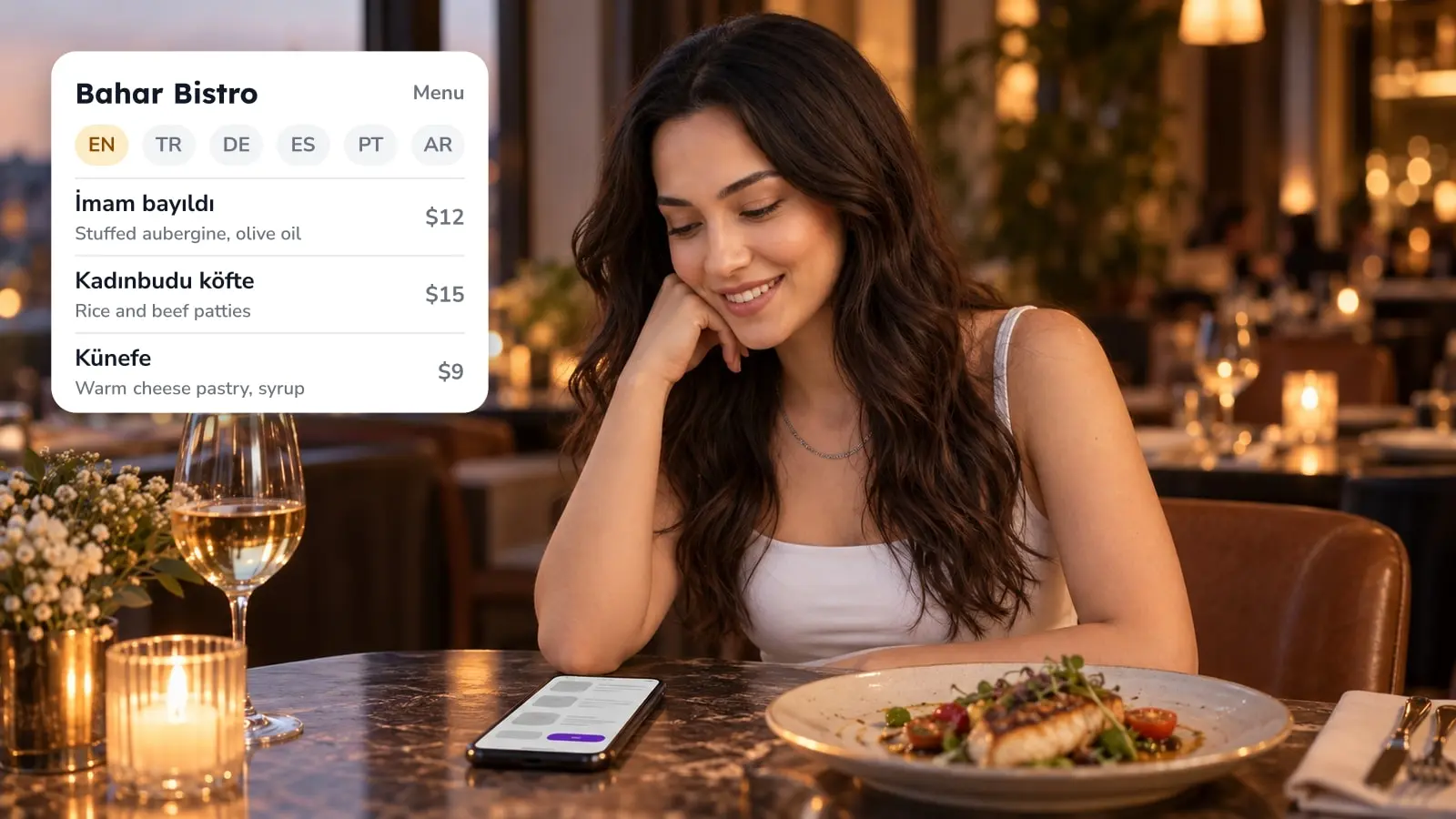
- Add photos and descriptions where you have them. The editor shows a live mobile preview, so you see what a guest will see.
- Switch the menu from Draft to Publish. If a guest opens the link while it's still a draft, they get a "menu is being prepared" message.
- Use the QR Code, Share or Copy Share Link buttons beside the preview to get the code and the link.
- Open the link on your own phone, on mobile data, before you print.
Which QR Do You Print: Display or Ordering
FineDine's QR settings have two modes that matter here. Display shows the menu and nothing else. It suits a bakery counter, or a bar with table service, or any place where the order still goes through a person. Ordering turns the same menu into one guests can order from, and you pick either a unique code per table or one code for all tables. If guests will also pay at the table, read how QR payment works at a restaurant before you switch that on.
If all you want is the free menu, start with Display. Ordering brings payment setup, table setup and a kitchen that has to watch a new screen, and that's a separate decision. Online ordering for restaurants covers what changes on the floor when you make it.
What a Free Trial Covers and Where It Stops
FineDine offers a 14-day trial. It's enough to build, publish and test a real menu of up to 80 items, but it isn't the full product, and the panel tells you on screen when something is locked. Here is what you can rely on and what you can't:
Before the Code Goes on the Table
A bad print run costs money, so test the printed code, not just the link. Scan a test sheet at the size you plan to use, in the light of your own dining room. A code on a glossy card under a spotlight can fail even though it scanned fine on your screen.
Changing Prices After the Code Is Printed
Item and price edits are made in the menu editor and go live through the same Publish switch, so a price change doesn't send you back to reprint laminated cards. What does force a reprint is the address, because it follows the venue name. That's why the venue name is the first thing to settle.
| Part of the job | On the trial | Note |
|---|---|---|
| Importing a menu from photo, PDF, Excel or CSV | Works | Uses AI credits; the trial includes 50. Trial menus hold up to 80 items each; larger menus need a paid plan |
| Publishing and getting the QR code and share link | Works | Menu must be switched from Draft to Publish |
| AI food photos | First 5 are free | After that they use credits, and cost differs by image type |
| Second menu language | One extra language | The trial adds one language. Paid plans allow more; the upper limit isn't published. |
| Custom domain for the website | Locked | The panel asks you to upgrade |
| In-App Promotions banners | Locked | The panel asks you to upgrade |
| Classic reports history | Last 1 week only | This limit applies to classic reports only. Analytics history up to 30 days works on the trial; longer history is locked and needs a paid plan |
Frequently Asked Questions
- Do my guests need to install an app to open the menu?
- No. On most current phones the built-in camera reads a QR code and opens the link in the browser. For anyone whose phone doesn't, print the short link next to the code.
- Can I turn an existing PDF menu into a QR menu?
- Yes. Menu Builder reads a PDF, photo, Excel or CSV file and builds an editable menu from it. Check every price afterward. The import is a first draft of your menu, not a finished one.
- Is it free forever?
- A static QR code costs nothing, but the menu tool behind it does once the 14-day trial ends. The pricing page shows what each plan includes. Plan details aren't repeated here because they change.
- Can guests order and pay from the same code?
- Only if you set the QR to Ordering mode and configure ordering and payments. In Display mode the code shows the menu and nothing else.
- Does the menu work in more than one language?
- Yes, through the Translation Center, which can auto-translate and lets you edit each translation side by side. How many languages you get depends on your plan, so check the pricing page.