How Can I Print My QR Code?
Updated: September 22, 2026
If you would like to take a print-out of your QR Code to present at your venue, it can be done in simple steps!
Delivery & Pick-up Menu
- Under the Settings tab, go to QR Codes, then Get to the Delivery & Pick Up tab on your Dashboard.
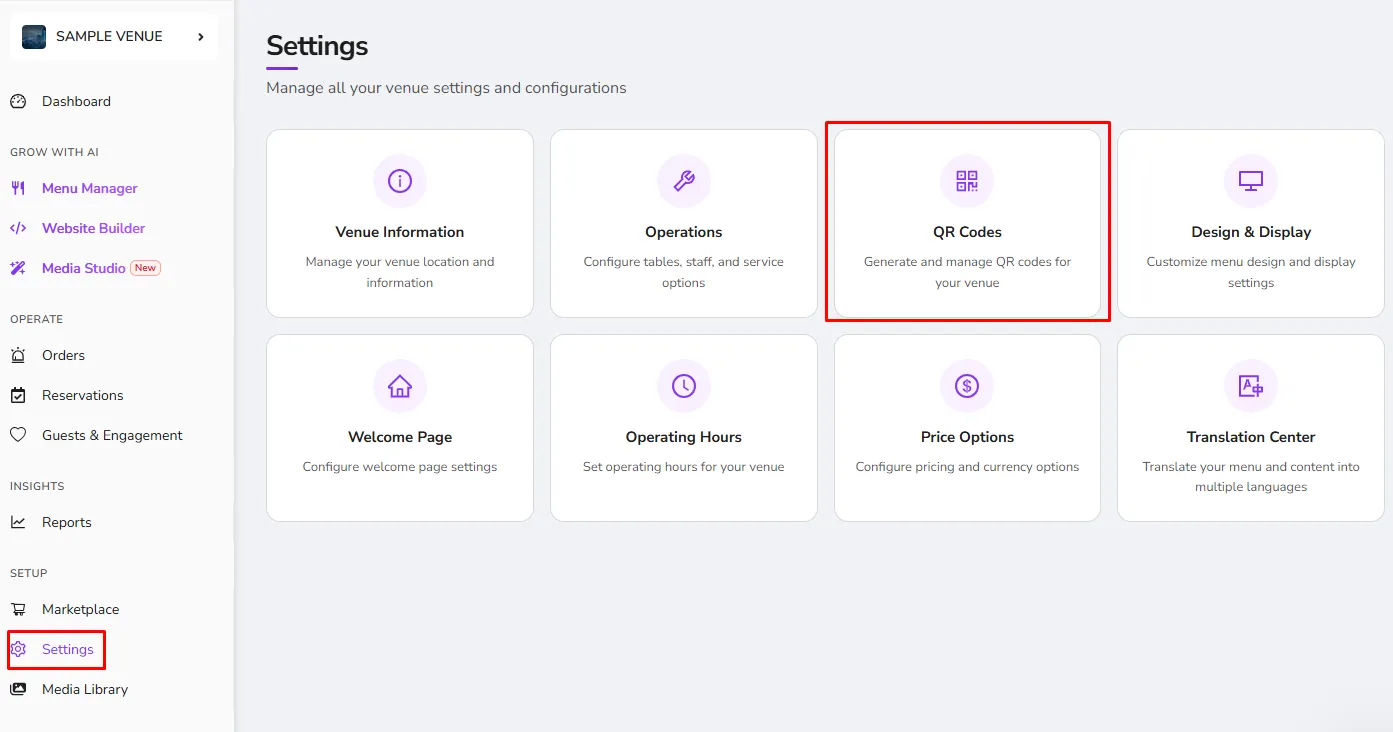
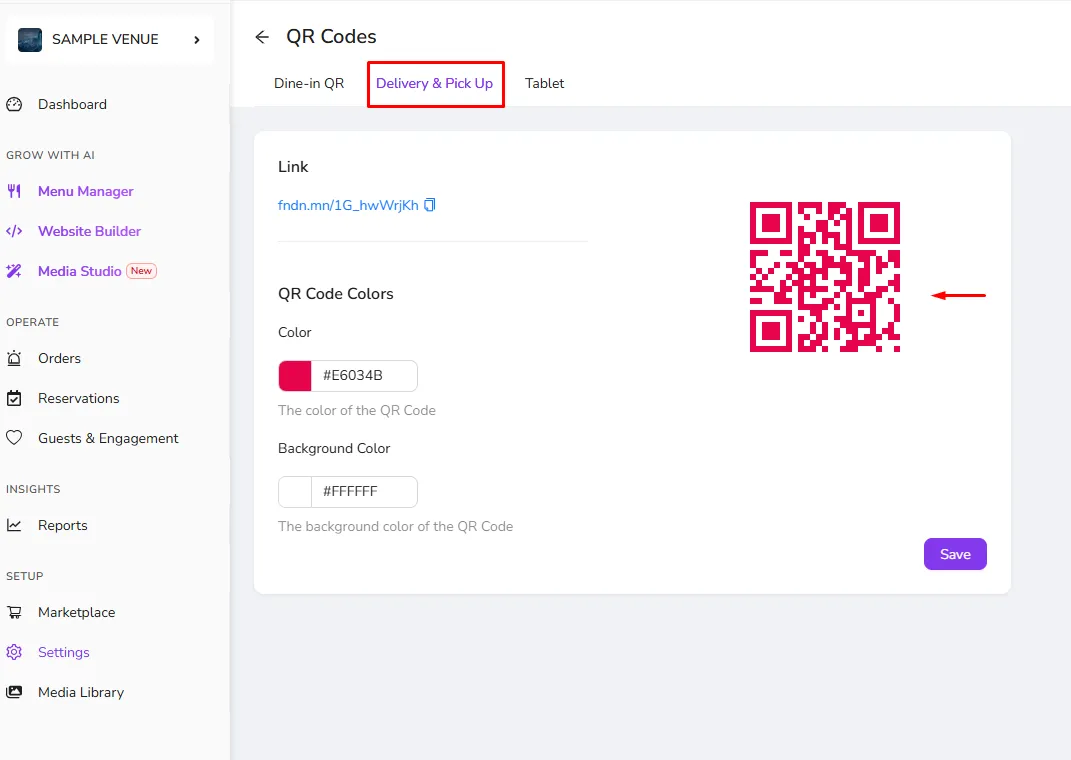
- On the QR Settings tab, you can left-click on your QR Code and then right-click to have the "Save Image as" button.
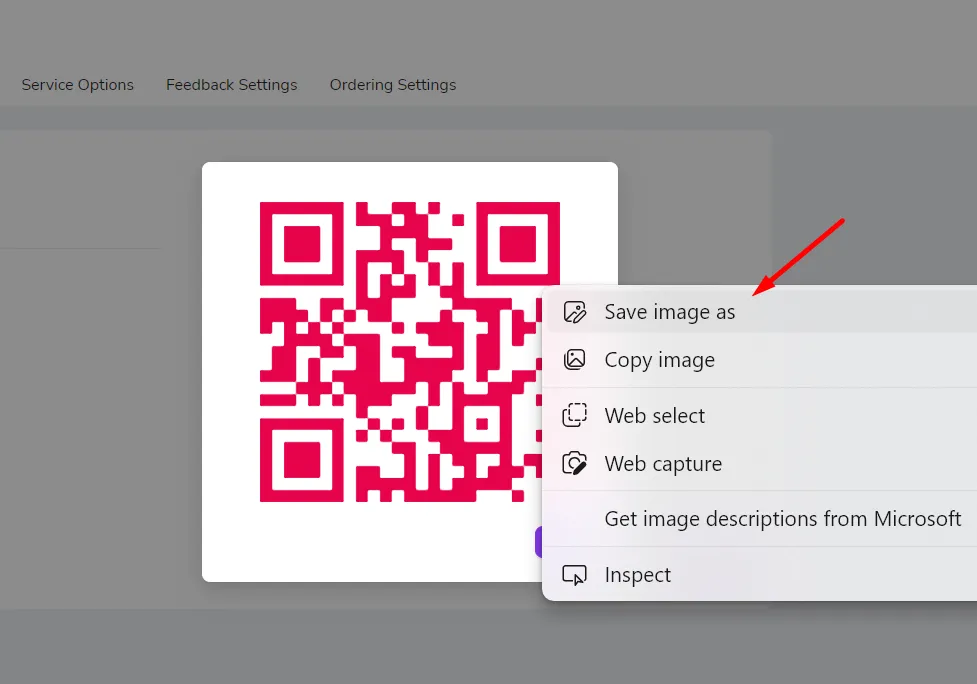
- Clicking on the "Save Image as" button will download your QR Code in PNG format, where it can be used to print and present at your venue easily 🚀
Dine-in QR Codes
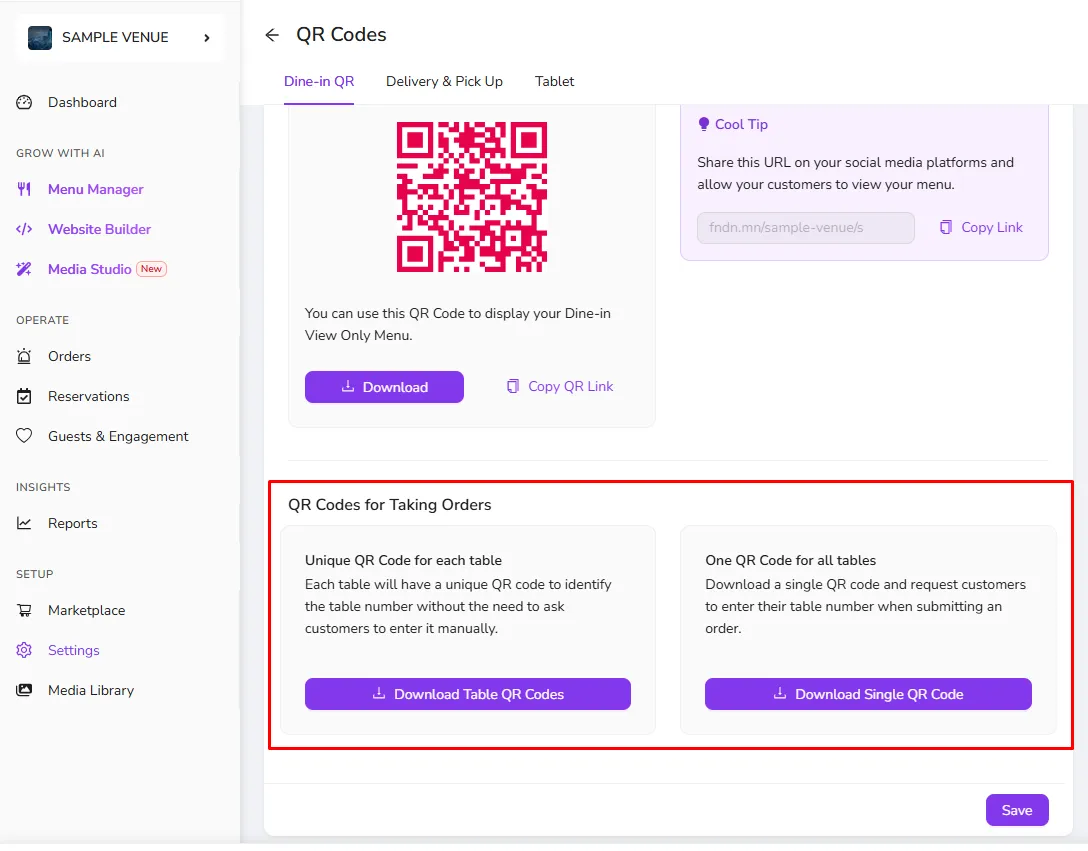
- Go to Settings, then click on the QR Codes tab to access the Dine-in QR page
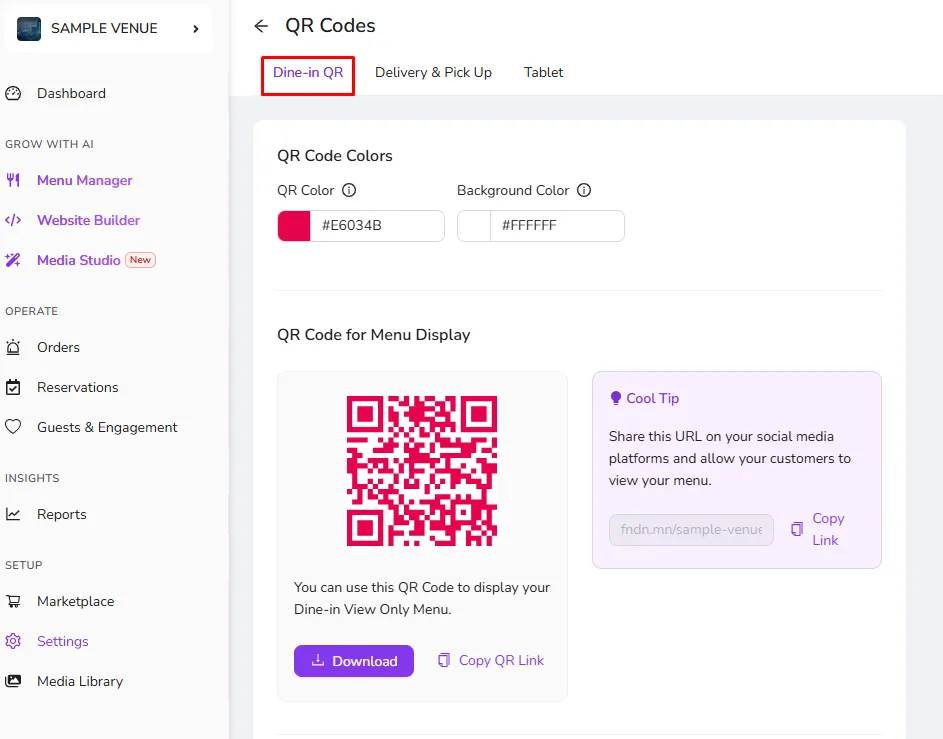
- On this page, you would find
- QR Code for Menu Display to allow your guests to only display your menu
- QR Codes for Taking Orders
- Unique QR Code for each table to download the authentic QR codes of your tables that will allow your customers to scan and submit their Dine-in orders to differentiate the source of your orders
- One QR Code for all tables to download a single QR Code to place on your tables to let your guests select their table first and then order from your menu
*"Save Image as" button may vary between different browsers as "Save as"
Was this article helpful?
Related articles
Still need help?
Our support team is here for you. Start a chat and we'll get you an answer.