
The order goes onto a pad at the table. A few minutes later it gets keyed into the POS, and somewhere in between a modifier drops, or a table waits while the server ahead of them finishes at the terminal. Tableside ordering closes that gap by putting the order into the system where the guest is sitting. Your server enters it on a handheld, or the guest sends it themselves from a QR code on the table, a tablet, or a kiosk by the counter. Choosing the device is the quick half of the decision. The rest is table numbering, payment and tips, a menu that has to answer questions with nobody standing there to answer them, and a preparation bill that arrives before the first order does.
Four Setups, and Who Holds the Device
A server with a handheld is doing the job they always did. What changes is when the order reaches the kitchen. It goes in while they are still at the table, and nobody keys it a second time later. Specials, the second glass, the decision to hold an order back: that all stays with your team.
Hand the screen to the guest and the work splits. The guest reads, decides and sends. Your team carries, checks in and handles what a screen cannot.
You can also run both at once. A code on the terrace and servers with handhelds inside is a workable arrangement, and the channels are switched on separately, so nothing in the setup forces you to pick one.
The tablet that stays on the table is the setup with daily upkeep attached. Charging, a wipe between covers, and a layout that stays readable at arm's length across a table. Tablet menus are themed on their own tab, separately from the QR menu. If tablets are the way you are going, start from what a tablet menu layout has to do differently.
The 30/30/30 Rule and the Line This Moves
Owners weighing this tend to meet a budgeting rule of thumb before they meet a device. The version that circulates is 30/30/30: roughly 30% of revenue to food, 30% to labor, 30% to rent and the rest of your overhead. Whatever survives is the margin. Treat it as a planning frame and nothing tighter. A wine-led bar and a bakery do not carry the same food line, and a hotel breakfast operation matches neither.
Tableside ordering gets sold against the labor line. On its own, that is the line it is least likely to move. Taking the walk to the terminal out of a shift does not take a server off the schedule. It gives the same server minutes back, and what those minutes are worth depends on what your floor does with them. Food cost does not change because the order arrived on a tablet.
Overhead is where most of the spending lands, and it lands before the first order. Photographing dishes, writing descriptions a guest can order from, printing codes and printing them again when a section gets renumbered. Tablets and their chargers, if you go that way. AI images run on credits rather than coming unlimited, and the credit cost is not the same for every type. A generated image, an enhancement of a photo you already have and a marketing image are each priced separately, so read the rates before you plan a full menu shoot around them. Do the ten dishes that carry your margin first and let the rest wait.
What this lifts in your own room is not a number we can quote you. Neither can a case study from somebody else's dining room.
What the Menu Has to Say on Its Own
When the guest orders from a screen, the menu takes over the questions your server used to field. What it leaves out tends to come back as a raised hand, or as a dish nobody orders. So the item carries more than a name and a price:
- A photo of the dish as you actually plate it.
- A description that names what is in it, since nobody is standing there to say.
- Price options for the sizes and portions you sell.
- Modifiers for the extras people always ask for: no onions, oat milk, extra shot.
- Allergen and diet labels.
- Availability, for the plates that only exist at lunch.
On the guest's side that turns into the item page they tap into. The variants they choose from, the allergen icons, a calorie badge, and the ratings other guests left on that dish. Coffee bars get a field most menus do not have, caffeine in milligrams per variant. It answers a question guests normally put to the barista.
Language carries more weight here than on a printed menu, because there is no server to bridge it. The guest picks a language on the welcome screen before the menu loads. How many you can publish is tied to your plan, so check yours before you promise a tourist menu in four languages.
Keeping the Screen Menu and the Kitchen in Step
A printed menu goes stale because fixing it costs a reprint. On a screen the edit is cheap, so the failure moves somewhere else. The question becomes whether the version guests are reading is the one you edited. Menus hold a draft and a published state, so a price you change sits where you made it until you publish. The preview next to the editor shows the guest's view while you work. That is where a description that reads fine in a form field turns out to be too long on a phone.
Each menu also shows which channels it is live on: dine-in QR, tablet, pickup, delivery. That row matters at publish time. A menu serving the dining room and the delivery listing at once carries the same edit to both.
The other half of this is mid-service. A dish that runs out comes off with the visibility toggle, and the next scan does not show it. That job belongs to whoever is running the pass, so settle who holds that login while the room is still quiet.
Attaching the Order to the Right Table
A QR code can carry the table with it. Print one per table and the order arrives already attached to table 12. Use a single code for the whole venue and that detail has to be collected some other way, either from the guest on screen or by your team at the pass.
Tables are grouped into areas, so the terrace, the mezzanine and the garden can be numbered separately and laid out on a floor plan. The per-table codes come off the same screen where you build those tables. Renumber a section and every code in it gets printed again.
Paying Without Leaving the Table
Ordering at the table and then queueing for the check leaves half the wait in place. Card and cash still run through the POS. Online payment covers Apple Pay, Google Pay and cards. Fast Checkout adds splitting the bill, at the moment through Stripe and Myfatoorah.
Tips, a minimum order value and age verification for alcohol sit with the ordering settings. A cover or service charge is set up with your tables instead, alongside staff and the service requests guests can send from the menu.
Which provider you can actually use depends on where you operate. Iyzipay and MOKA come up for venues in Turkey, Myfatoorah and STC Pay in the Gulf, Stripe in a number of other markets. What is available in your own country is on the Marketplace list for your account. If that side is not settled yet, what QR payment changes at the table goes through it in more detail.
Where the Waiting Moves
Sending orders faster does not make the kitchen faster. If your pass is already at its limit at 8 pm on a Saturday, self-ordering moves the wait rather than removing it. The table stops waiting for a server and starts waiting for the kitchen. That alone does not make it a poor fit for the room. Knowing where the wait went is what keeps you from reading the first week as a failure.
Decide who paces the courses. When a guest sends starters and mains in one submission, the kitchen sees them on a single ticket. The pacing your servers used to do by holding an order back becomes a kitchen call.
Not every table wants this. A code on a dim table is harder to scan than the same code in daylight, and a table of eight often ends up with one phone ordering for everyone. Keep a way to call a server open. That is what the service requests a guest can send from the menu are for. The guests who would rather not use the code have somewhere to go, and so does everyone who wants more water.
How Do You Know It Paid Off?
Pick a stretch long enough to include ordinary weekdays and a full weekend. Then compare one part of the room to itself. A terrace that got codes in June, held against a dining room that did not, tells you more than this month against last month.
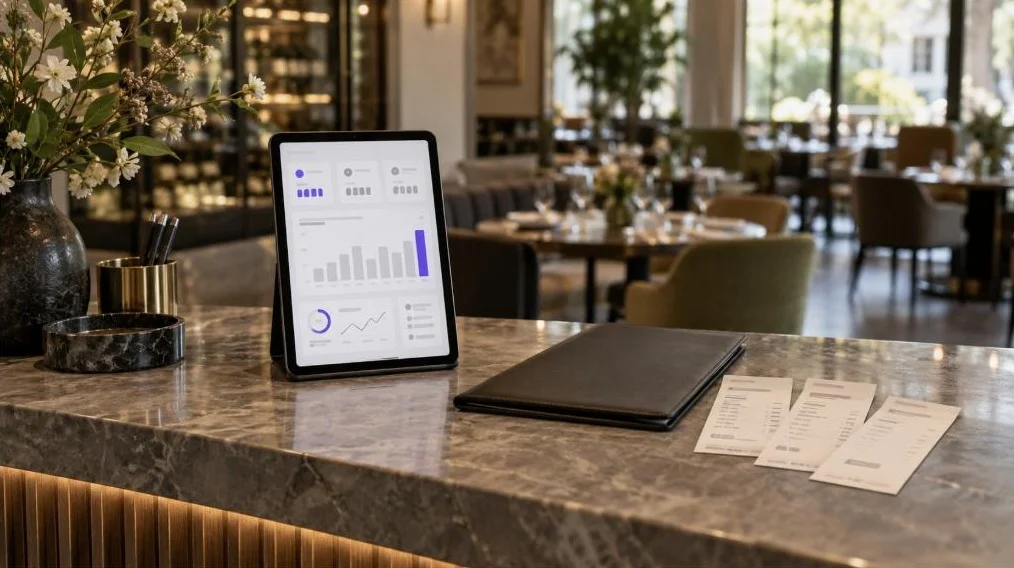
Orders and average ticket say whether the room is turning and spending. Item views set next to orders say something else: which dishes get opened and then skipped. That points at the photo or the description more often than at the dish. Reports compare one date range against another, and how much history you can hold it against is tied to your plan.
POS First, Then Menu, Then Codes
The order you work in decides how much of this you do twice. Codes printed for a menu that still has three items without photos get scanned anyway.
1. Check the Marketplace against the till you already run. It lists POS integrations, Foodics, Simpra, Clover and Revel among them, and the payment providers. The list changes, so check it on your own account. If your POS is not there, decide early how orders will reach it.
2. Finish the menu data. Photos, descriptions, price options, modifiers, allergen labels and availability. Anything the guest cannot ask about has to be on the item.
3. Build your tables and areas under Settings > Operations. The per-table codes come out of that same screen.
4. Decide what the code does. Under Settings > QR Codes, Display mode shows the menu and takes no orders, Ordering mode takes them. Dine-in codes are generated either one per table or as a single code for the venue.
5. Turn on the channel and its rules. Dine-In QR, Tablet, and Delivery & Pick-Up are switched on separately in Orders > Ordering Settings, each with its own payment methods and cancellation rules.
6. Set the mode, if you run tablets. Full Service for a server carrying the device, Table Top for one that stays on the table, Kiosk for guests ordering on their feet. The same screen decides whether an order is submitted as the guest or as the waiter, which matters when both happen at the same table.
Delivery and pickup are configured from the same ordering settings. If you sell off-premise too, the do's and don'ts of online ordering cover what changes once the guest is not in the room.
To see this against your own floor plan, table numbering and payment setup, request a FineDine demo and walk through your busiest service on it.
| Setup | Who enters the order | What you own and keep running | Where it fits |
|---|---|---|---|
| Waiter with a handheld | Your server, at the table | One device per section, plus charging and staff accounts | Full service, coursed menus, wine service |
| QR code at the table | The guest, on their own phone | Printed codes, one per table or one for the venue, reprinted when numbering changes | Terraces, gardens, rooms that turn fast |
| Tablet that stays on the table | The guest, on your device | A tablet per table, charging, a wipe between covers, its own menu theme and layout | Rooms where you want the photos large and the menu always there |
| Kiosk near the counter | The guest, standing at the screen | One or two screens, floor space, a payment method on the device | Counter service and pickup-heavy rooms |
Frequently Asked Questions
- What does tableside mean in cooking?
- In the kitchen it means the dish is finished in front of the guest. A fish filleted at the table, a dessert flamed, a salad dressed while they watch. That is a service style rather than a system, and it shares only the word with tableside ordering. The two meet at the item description, because a dish prepared at the table has to say so on the menu when nobody is there to explain it before the order goes in.
- What is a pay-at-table device?
- A handheld card terminal a server carries to the table, so the card stays with the guest and nobody walks to the till. The terminal itself comes from your payment provider or your POS vendor. Where the guest orders from their own phone, that phone does the same job. The bill is settled in the same session as the order, by card, Apple Pay or Google Pay.
- Is tableside ordering the same thing as a mobile POS?
- A mobile POS is the staff-side half of it. Your server keys the order into a handheld at the table. Tableside ordering also covers the setups where the guest enters the order themselves, so a mobile POS is one way of doing it rather than the whole category.
- Do guests have to download an app to order?
- No. The code opens the menu in the phone's browser, and a tablet or kiosk is your device with the menu already on it. A guest can create an account to keep favorites or leave a rating, but the menu loads without one.
- What happens if the connection at the table is weak?
- Guest-entered ordering needs a working connection on the guest's phone. Basements, thick-walled dining rooms and terraces at the edge of coverage are where it gives trouble first. Guest wifi is the usual answer. Where it cannot be fixed, put a staff device on that section instead.
- Does the kitchen see the order directly?
- Orders land on the Orders screen. Keeping that screen open on a tablet at the pass is the simplest way to work it. If your kitchen runs on printed tickets, a receipt printer integration is listed in the Marketplace, so check how it is offered on your own account.
- How do tips work when the guest pays from their own phone?
- Tip collection sits in the ordering settings, so it applies to the payment the guest makes at the table. Cash tips carry on as before. How your team wants the two split is worth settling before you switch it on.